
Find your way
The window
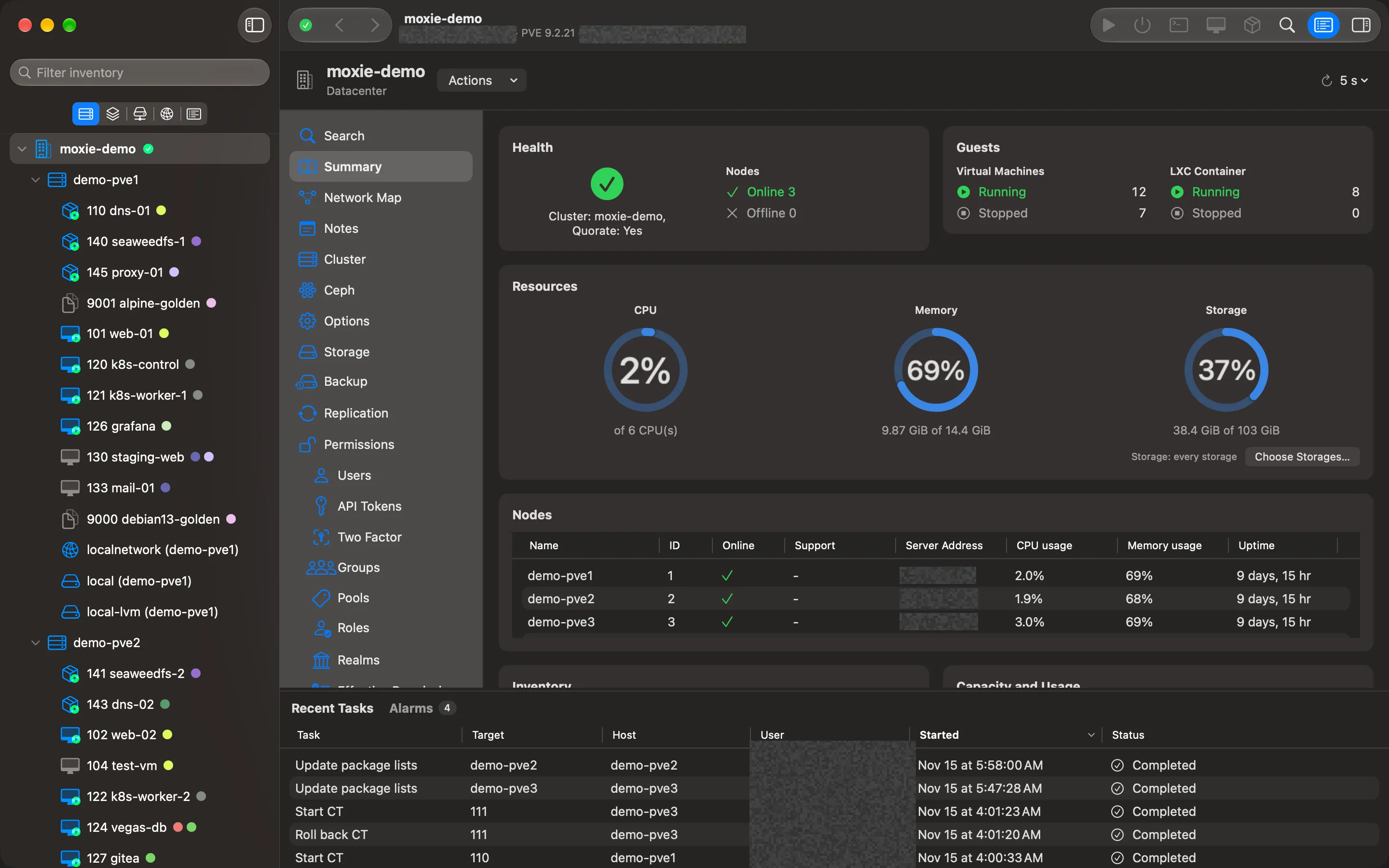
The sidebar, Proxmox’s own menu beside it, the detail pane, the inspector, and Recent Tasks and Alarms along the bottom.
Moxie Prox’s window reads from left to right: what you have, what you can do with the selected object, and the page you chose. Along the bottom, the tasks and alarms of every cluster you’re showing.
The sidebar
The picker at the top of the sidebar switches between five views:
| View | Shows |
|---|---|
| Hosts & Clusters | Datacenter, then each host, then its guests, storage and networks. |
| VMs & Templates | Guests in folders (Proxmox pools), plus Unfiled and your Smart Folders. |
| Storage | Every storage, in folders. |
| Networking | Each SDN zone, then the zone on each host. |
| Lists | Sortable tables of every cluster, VM, container, template, host, storage and folder. See Lists and tables. |
Type in Filter inventory to narrow the tree. A host that’s offline has a red cross beside it.
Small activity badges show what’s happening right now: a guest that’s migrating, backing up, starting, rebooting or shutting down, and a host that’s rebooting or shutting down, or starting, stopping or migrating all its guests. A host that needs a reboot after updates is marked too.
Proxmox’s menu, beside the sidebar
When you select something, the second column shows the same menu Proxmox’s web interface shows for it, with the same names, in the same order and nesting. A datacenter has Summary, Notes, Cluster, Ceph, Options, Storage, Backup, Replication, Permissions, HA, SDN, ACME, Firewall, Notifications and the rest. A VM has Summary, Console, Hardware, Cloud-Init, Options, Task History, Backup, Replication, Snapshots and Firewall.
If you know Proxmox’s web interface, you already know where everything is.
The Actions menu
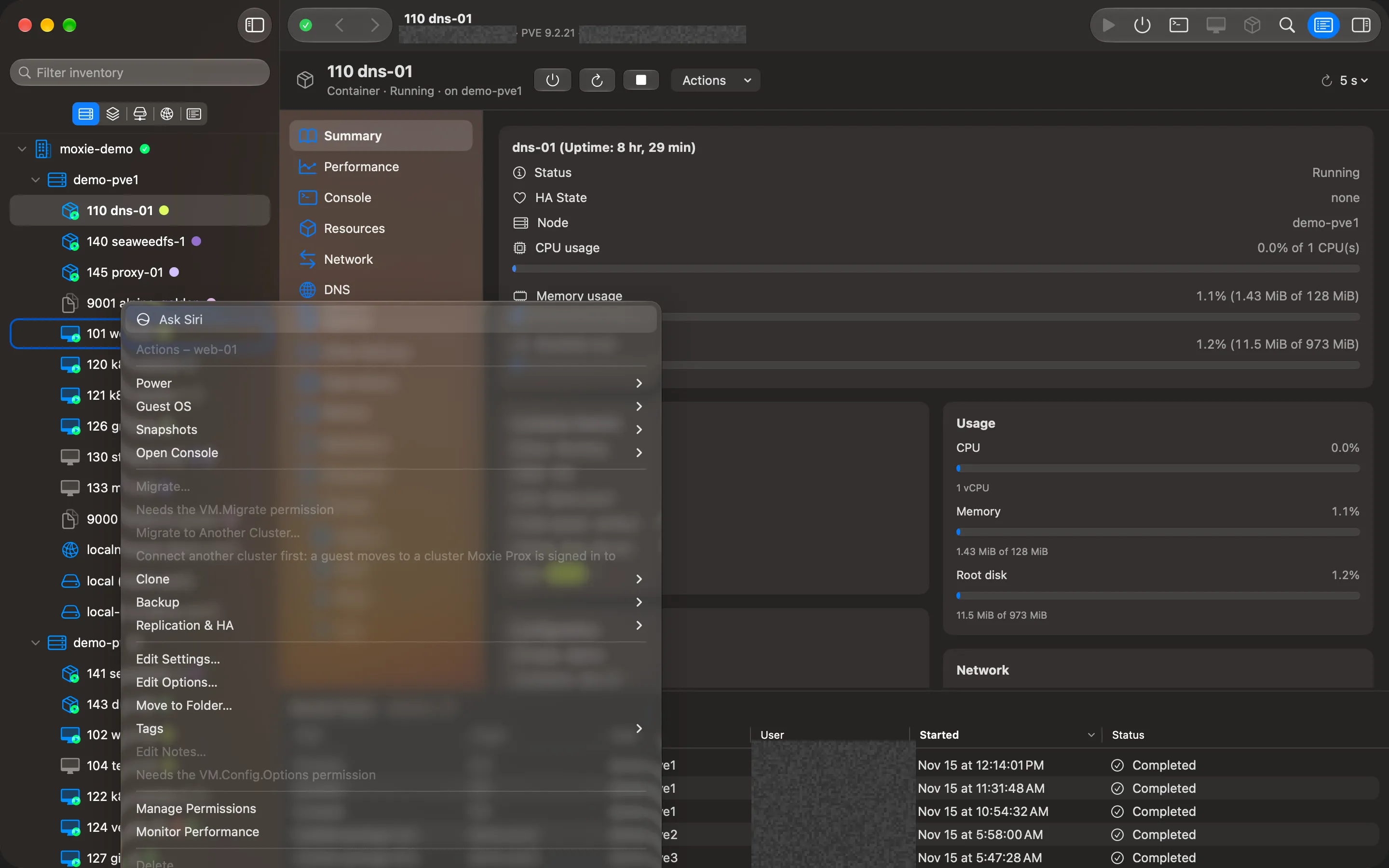
Every object has an Actions menu (and the same menu on right-click), grouped the way vCenter groups them: Power, Guest OS, Snapshots, Console, Migrate and Clone, Backup, Settings, Tags and Folders, Permissions, Delete. An item you can’t use is dimmed and says why, for example “Needs the VM.Console permission” or “Not available while the VM is running”.
The toolbar
- Back and Forward (⌘[ and ⌘]) return to the places you looked at before.
- Start (or Resume) and Shut Down for the selected guest.
- Console. Hold ⌥ to open it in its own window.
- Create VM and Create CT.
- Search Inventory (⌘K). See Search and Smart Folders.
- Show or hide Tasks and Alarms and the Inspector.
- The cluster list, to choose which clusters are shown.
Refresh
The small control at the top right of every page refreshes it now (⌘R) or sets how often it refreshes by itself: every 5, 15 or 30 seconds, every minute, or Off.
The inspector
View › Show Inspector (⌃⌘I) opens a panel on the right with the selected object’s properties, readable or raw.
Recent Tasks and Alarms
The pane along the bottom has two tabs.
Recent Tasks lists every task you and others start, with its cluster, target, host, user, start time, status and progress. Choose Show Log for the full log, or Stop Task… to stop one that’s running. See Tasks, logs and alarms.
Alarms gathers the problems that need you: lost quorum, offline hosts, Ceph health checks, HA errors, storage that’s nearly full, stale guest locks, failed tasks, and a physical server’s sensor reading outside its limits.
Your layout is remembered
Moxie Prox keeps the window’s size and position, the sidebar’s width, the bottom pane’s height and the order of Summary cards, for you alone.
Checked against Moxie Prox 1.3. Updated November 9, 2026.