
Get started
Clusters and groups
Every cluster you run in one window, side by side, arranged in groups you can nest, drag and sum up.
Proxmox’s web interface shows one cluster per browser tab. Moxie Prox shows all of them in one window, side by side, much like vCenter’s linked mode, and lets you arrange them in groups such as Work, Home and Lab.
Linking and groups change nothing in Proxmox. They’re how Moxie Prox arranges your clusters for you. Your clusters stay separate clusters: nothing is joined, moved or reconfigured on your servers. (Joining servers into one Proxmox cluster is a different thing, done under Datacenter › Cluster.)
Several clusters at once
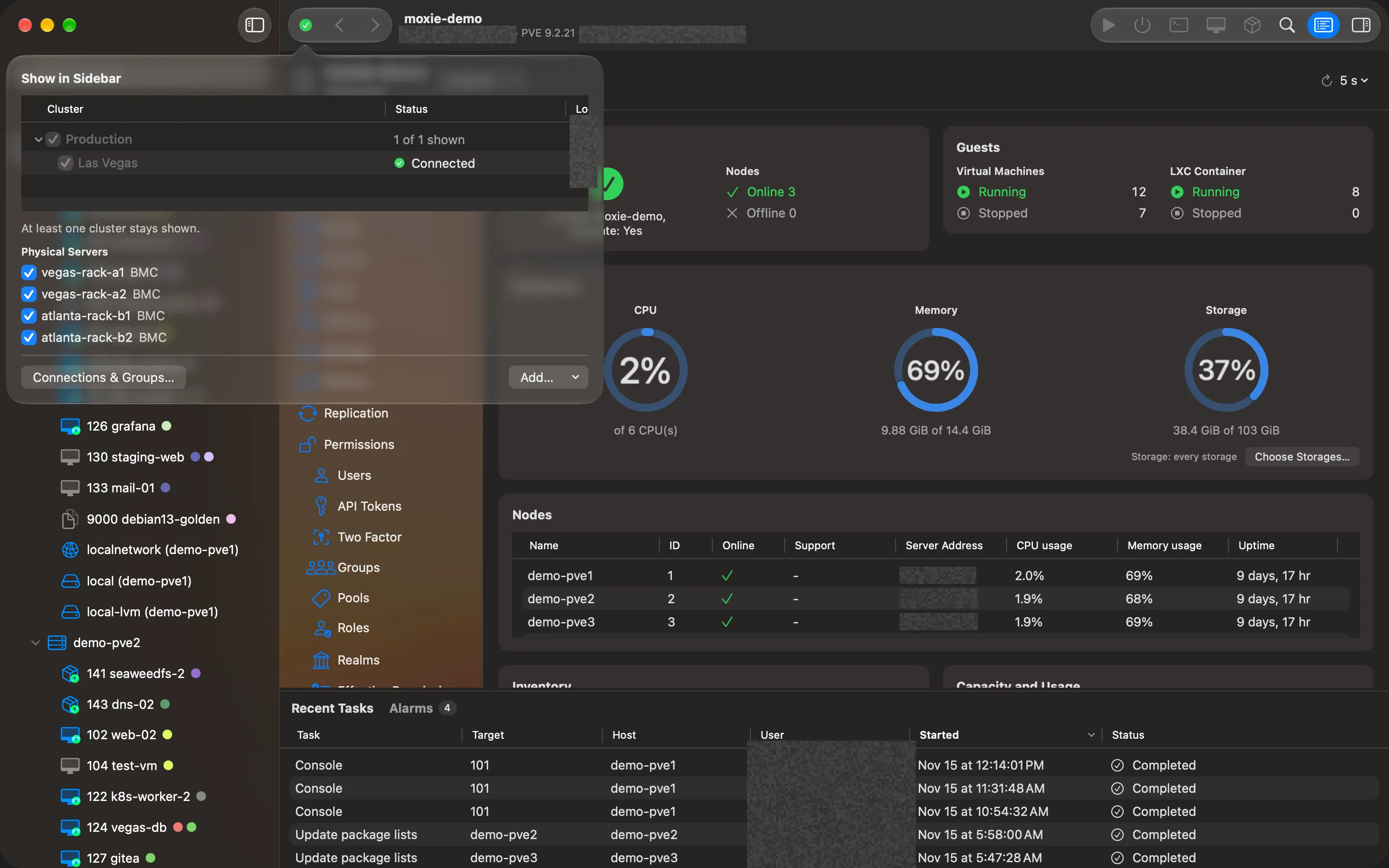
Add as many clusters as you like with Add… › Proxmox VE Cluster… (see Set up your first cluster). The toolbar’s cluster list, Show in Sidebar, ticks the ones you want to see, and they appear together, each as its own root in every sidebar view.
- Recent Tasks combines the tasks of every cluster shown, and Alarms their problems.
- Lists › Clusters has a table of your clusters and a usage chart with an All Clusters total.
- Each cluster has a status mark: a green check when connected, a red cross when it can’t be reached.
- A cluster you untick isn’t shown and stops refreshing until you tick it again.
Make a group
- Open Settings › Connections and choose New Group…
- Name it, for example Work.
- Add clusters to it from each cluster’s Groups menu in the same list. A cluster can be in several groups.
Groups appear as headers in the sidebar, each with the clusters in it. Clusters in no group are listed last. Server management connections (iLO, iDRAC and other BMCs) go in groups too, under the group’s Physical Servers (see Physical servers).
Right-click a group’s header for more: Add a cluster, or a server that starts in this group; New Subgroup…; Move to Group; and Move Group Up or Move Group Down.
Groups inside groups
New in 1.2
Groups can hold groups, up to three levels deep: Work › Datacenter East › Production, for example. New Subgroup… on a group’s header adds one, and Move to Group moves a group, with everything in it, into another group or to Top Level.
A group’s Summary
New in 1.2
Select a group’s header to see its Summary, added up across every cluster in the group and its subgroups. It covers what the view is about: in Hosts & Clusters, health, guests and capacity; in Storage, every storage of its clusters, fullest first; in Networking, their zones, VNets, bridges and bonds.
Arrange the sidebar by dragging
New in 1.2
Drag a cluster or a group anywhere in the sidebar: into a group, out of one, or to another place in the order. Before anything changes, Moxie Prox shows where it will land and asks; after the move, Undo puts it back (⌘Z works too). From the keyboard or with VoiceOver, Move Up and Move Down in a row’s menu (Move Group Up and Move Group Down on a header) change the order, and Move to Group moves a row into another group.
Edit or remove a cluster
Settings › Connections lists every saved cluster with Edit… and Remove…. Right-click a cluster’s row in the sidebar for the same choices, and to hide it.
Removing a cluster makes Moxie Prox forget it and delete its saved password or token secret from this Mac’s Keychain, after a confirmation that names it. Nothing on the server changes: its hosts and guests keep running, and you can add it again later.
To clear everything at once, use Settings › Privacy & About › Remove All Clusters and Saved Credentials…
Checked against Moxie Prox 1.3. Updated November 15, 2026.