
Work with guests
Power and confirmations
Start, shut down, reboot, pause and hibernate guests, one at a time or many at once, with a clear confirmation before anything goes down.
Power actions
Select a VM or container and use the toolbar or Actions › Power:
| Action | What it does |
|---|---|
| Start | Powers the guest on. Runs at once. |
| Shut Down | Asks the guest’s operating system to shut down cleanly. |
| Reboot | Asks the guest to restart. |
| Stop | Cuts the power immediately, like pulling the plug. |
| Reset | Restarts immediately, without a clean shutdown (VMs). |
| Pause | Freezes a VM in memory (Proxmox calls this suspend). |
| Hibernate | Saves a VM’s memory to disk and stops it. |
| Resume | Continues a paused or hibernated VM. Runs at once. |
Start and Watch opens the VM’s screen first and then powers it on, so you can see the firmware and boot menu.
Nothing goes down without asking
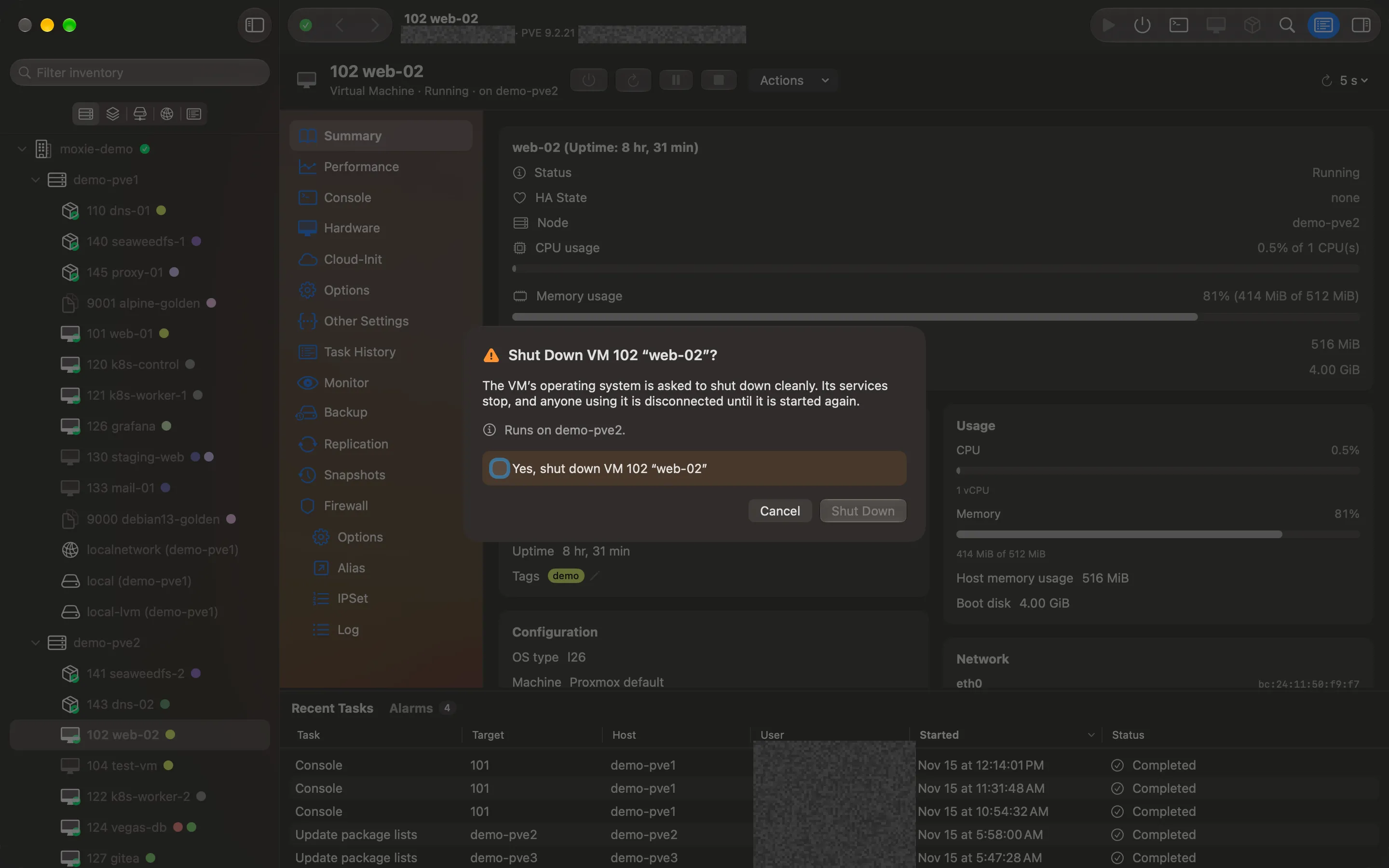
Every action that takes a guest down (Shut Down, Reboot, Stop, Reset, Pause and Hibernate) first shows a warning that names the guest, for example Shut Down VM 131 “web”?, says what will happen and which host it runs on, and notes when HA manages it.
To go ahead, tick the Yes, shut down VM 131 “web” box for exactly that guest, then confirm. Pressing Return never confirms. Only Start and Resume run without asking.
Many guests at once
- Select several guests in any list, then choose a power action from Actions.
- Host › Bulk Actions has Start All Guests…, Shut Down All Guests…, Suspend All Guests… and Migrate All Guests…
- Datacenter › Actions › Bulk Actions does the same across the whole cluster.
Bulk actions that take guests down ask with a box naming how many, such as Yes, shut down 12 guests.
Hosts
Reboot Host… and Shut Down Host… list the guests that will be affected and ask you to tick Yes, reboot host with the host’s name.
Deletes ask twice
New in 1.2
Every delete, remove, destroy, wipe and rollback works the same way: a sheet names the exact object (a guest by its VMID and name), says what will be lost, and has a “Yes, …” box that must be ticked for exactly that object before the button works (deleting a guest asks you to type its VMID instead). Return never confirms.
The colour tells you how final it is, always with words and a warning sign too, never colour alone:
- Red: something is gone or overwritten for good, such as a guest, a disk, a snapshot rollback or a saved password.
- Orange: something is taken down or loosened but nothing is lost, such as a shutdown, a reboot or an OSD taken out.
When an action is dimmed
Moxie Prox only offers what your Proxmox login may do. A dimmed action says why: for example, Needs the Sys.PowerMgmt permission, Read-only access: your Proxmox account can view this guest, not operate it, or HA-managed VMs can’t hibernate.
Checked against Moxie Prox 1.3. Updated November 9, 2026.