
Find your way
Reports
New in 1.2
Ready-made reports across all your clusters (VM inventory, storage capacity, hosts, networks and snapshots), searched, saved, archived and exported as PDF, CSV, HTML or JSON.
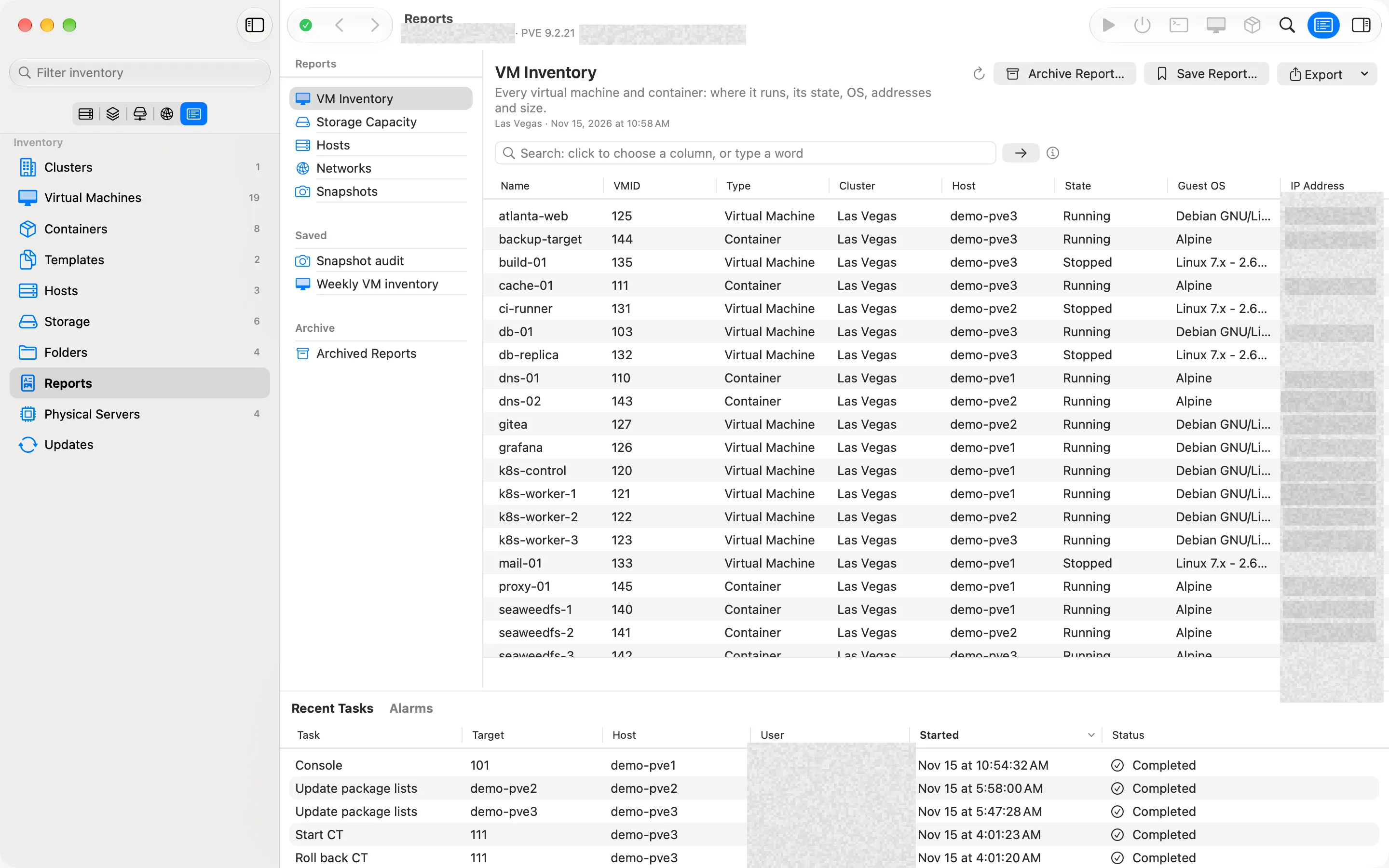
Reports turn everything Moxie Prox can see into tables you can hand to someone else: a list of every VM for an audit, the storage that’s filling up, the hosts’ versions before an upgrade. Each report covers every cluster you’re showing.
Open a report
Choose Lists in the sidebar’s picker, then Reports. Pick one:
| Report | Shows |
|---|---|
| VM Inventory | Every virtual machine and container: where it runs, its state, OS, addresses and size. |
| Storage Capacity | Every storage once: type, where, used, total, free and how full. |
| Hosts | Every host: state, CPU and memory in use, uptime and Proxmox VE version. |
| Networks | SDN zones and VNets, and every host’s bridges and bonds. |
| Snapshots | Every guest snapshot: when it was taken, its parent, whether RAM was saved, and the space Proxmox reports for it. |
A report reads your clusters once, when you open it, and fills in as the answers arrive. It doesn’t change while you look at it: Refresh Report reads everything again. You can keep working elsewhere while a large report builds.
If something couldn’t be read, such as a cluster you’re signed out of, the report says so under its title, and so does every export except CSV, so a report never passes for complete when it isn’t.
Narrow it down
Type in the search bar above the report to keep only the rows you want, for example host = pve1 or os ~ linux. It’s the same query language as everywhere else, with the report’s own columns as fields. Exports contain exactly the rows you see.
Export
The Export menu saves the report as PDF… (pages with the column headers repeated on each), CSV… (the table alone, for a spreadsheet), HTML… (one self-contained page) or JSON… (for scripts). The file is named after the report, such as VM Inventory.csv. VM Inventory, Storage Capacity and Hosts can be exported while they’re still being read, and rows not read yet say so. Networks and Snapshots export once they’re complete.
Save a report you run often
Save Report… keeps the report and its search under a name. Saved reports are listed under Saved in the Reports sidebar, so next month’s “Production VMs on pve2” is one click away. Right-click a saved report for Rename or Edit Search… and Delete….
Keep a copy
Archive Report… keeps the report exactly as it is now, with its rows and the time it was made. Archived Reports lists the copies you kept: open one to read or export it again without reading any cluster, which is useful to compare this month’s storage with last month’s. Archived reports stay on your Mac, up to 200 MiB in all: when a new one would go over, Moxie Prox asks before it removes the oldest, and names them.
Checked against Moxie Prox 1.3. Updated November 9, 2026.