
Find your way
Search and Smart Folders
Find anything with ⌘K, filter any table with a query, and keep searches as Smart Folders. Every field, every operator, and ready-made examples.
Proxmox’s search box finds an object by name. Moxie Prox has a query language that can ask for “running Windows VMs on pve2 with more than 16 GB of memory”, used in three places:
- Global search (⌘K) across everything you’re showing.
- The search bar above every table in Lists, in Reports and in a folder’s Virtual Machines table.
- Smart Folders: a search you keep, shown as a folder that fills itself each time you open it.
You don’t have to learn the language: guided search writes it for you.
Search everything with ⌘K
Choose Edit › Search Inventory… or press ⌘K, type a name, VMID, host or tag, or a full query, then choose a result and Open it.
From a count on a Summary
Every count on the Datacenter, folder and cluster group Summary pages has a small magnifier beside it. Click it to open that list in Lists with the query that gives the same set already in the search bar: from Stopped 8 under Virtual Machines to the eight stopped VMs (status = stopped), from Offline 1 to the host that’s down. The list always matches the count, and you can change the query or keep it as a Smart Folder from there.
Guided search
New in 1.2
Click into a search bar and suggestions open beneath it. Pick a column (named as the table’s columns are), then a comparison in plain words, such as contains or more than, then a value from the ones in the table. The query is written for you as you go, and you can keep adding terms. Press Return or choose Apply Search to run it, and Clear Search to start over.
In a folder’s (or a zone’s) Virtual Machines table you can also right-click a row: Show Only and Hide filter the table by one of that row’s values, such as its state or its guest OS.
Write a query
A query is one or more terms. A term is field operator value:
status = running
Join terms with and, or and not, and group them with parentheses:
status = running and (tags ~ prod or node ^ (pve1, pve2)) not lock = backup
- Terms next to each other with no word between them are joined with
and. notis applied first, thenand, thenor. Use parentheses when in doubt.- A word on its own, with no field, searches the name, VMID, host, type, tags, folder, storage and cluster at once:
webfinds web-01, a VM tagged web and the Web folder. - Text comparisons ignore upper and lower case.
- Put a value with spaces in quotes:
name = "web server". set? field(orhas field) matches rows where the field has a value, andnull? fieldrows where it has none:set? lockfinds locked guests,null? tagsuntagged ones.- If a query has a mistake, the bar says what’s wrong and where. The How to Search help beside it has a short summary.
Operators
| Operator | Means | Example |
|---|---|---|
= |
is | type = qemu |
!= |
is not | status != running |
~ |
contains | name ~ web |
!~ |
doesn’t contain | name !~ test |
> < |
more than, less than | cpu > 50 |
>= <= |
at least, at most | maxmem >= 8G |
^ |
is one of | node ^ (pve1, pve2) |
!^ |
is none of | type !^ (node, storage) |
Text fields take =, !=, ~, !~, ^ and !^. Numbers, sizes, percentages and durations take =, !=, >, <, >=, <=, ^ and !^. Yes-or-no fields take = and !=.
~ and !~ can also use * as a wildcard, and the pattern then has to match the whole value: name ~ web-* finds web-01 and web-02 but not old-web-01.
Values
| Kind | Write it as | Examples |
|---|---|---|
| Text | as it’s shown | web-01, "Rocky Linux" |
| Number | digits | 100, 4 |
| Size | a number with K, M, G or T | 512M, 4G, 1.5T |
| Percentage | a number, with or without % | 50, 50% |
| Duration | s, m, h, d and w, combined if you like | 90s, 5m, 1h30m, 2d, 1w |
| Yes or no | true/false, yes/no, 1/0 | template = false |
Every field
These fields work in global search, in every Lists table and in Smart Folders. A row in Lists is a VM, container, host, storage or folder, and a field that doesn’t apply to a row (a host has no VMID) has no value there: set? and null? test for that.
| Field | Other names | What it is | Example |
|---|---|---|---|
name |
The guest’s, host’s or storage’s name | name ~ db |
|
vmid |
A guest’s ID | vmid >= 200 |
|
type |
qemu (VM), lxc (container), node (host), storage, pool (folder) |
type = lxc |
|
status |
A guest’s running or stopped, a host’s online or offline, a storage’s available |
status = stopped |
|
node |
The host it runs on (host works too, in a folder’s table) |
node = pve2 |
|
datacenter |
cluster |
The cluster, by the name shown in the sidebar | cluster = "Home lab" |
pool |
The folder it’s in (nested folders as Parent/Child) |
pool ~ Web |
|
tags |
Any of its tags | tags = prod |
|
template |
Whether a guest is a template | template = false |
|
lock |
A lock left on a guest, such as backup, migrate, snapshot, clone or rollback |
lock = backup |
|
ha |
Its high-availability state, when HA manages it | ha = started |
|
cpu |
CPU in use now, as a percentage | cpu > 80 |
|
cpus |
maxcpu |
Number of CPUs | cpus >= 8 |
mem |
Memory in use now | mem > 16G |
|
maxmem |
Memory it has | maxmem >= 32G |
|
disk |
Disk space in use | disk > 500G |
|
maxdisk |
Disk size | maxdisk >= 1T |
|
uptime |
Time since it started | uptime > 30d |
|
storage |
A storage’s name | storage = local-lvm |
|
plugintype |
A storage’s kind: dir, lvm, lvmthin, zfspool, nfs, cifs, rbd, cephfs, pbs and others |
plugintype ^ (nfs, cifs) |
|
content |
What a storage holds: images, rootdir, iso, vztmpl, backup, snippets, import |
content = backup |
|
shared |
Whether a storage is shared by every host | shared = true |
|
id |
Proxmox’s own ID for the row, such as qemu/101 or node/pve1 |
id = qemu/101 |
Guest details
The guest tables in Lists and a folder’s Virtual Machines table also know each guest’s details, read from the guest itself:
| Field | Other names | What it is | Example |
|---|---|---|---|
state |
running or stopped; only in a folder’s or zone’s table (Lists use status) |
state = running |
|
health |
status |
The Status column’s words: Normal, Backup in progress, Migrating, Taking a snapshot, HA error and others; only in a folder’s or zone’s table |
health != Normal |
os |
The guest OS, as the guest agent reports it or as set in Proxmox | os ~ windows |
|
ip |
Any of its IP addresses | ip ~ 10.20. |
|
mac |
Any of its MAC addresses | mac ~ bc:24:11 |
|
network |
bridge, vnet |
The bridges or VNets its network devices attach to | network = vmbr0 |
dns |
Its DNS name | dns ~ .corp |
|
agent |
The QEMU guest agent: running, not running, configured, not configured, error |
agent != running |
VMs report their OS and addresses through the QEMU guest agent, so start it inside each VM for these to fill in.
Two more fields: snapshots (how many a guest has, snapshots >= 2) and snapshotage (how long ago its oldest snapshot was taken, snapshotage > 30d; also oldestsnapshot). While a search that uses guest details is still reading guests, a line under the search box says how many have been read: matches appear as each guest answers.
Smart Folders
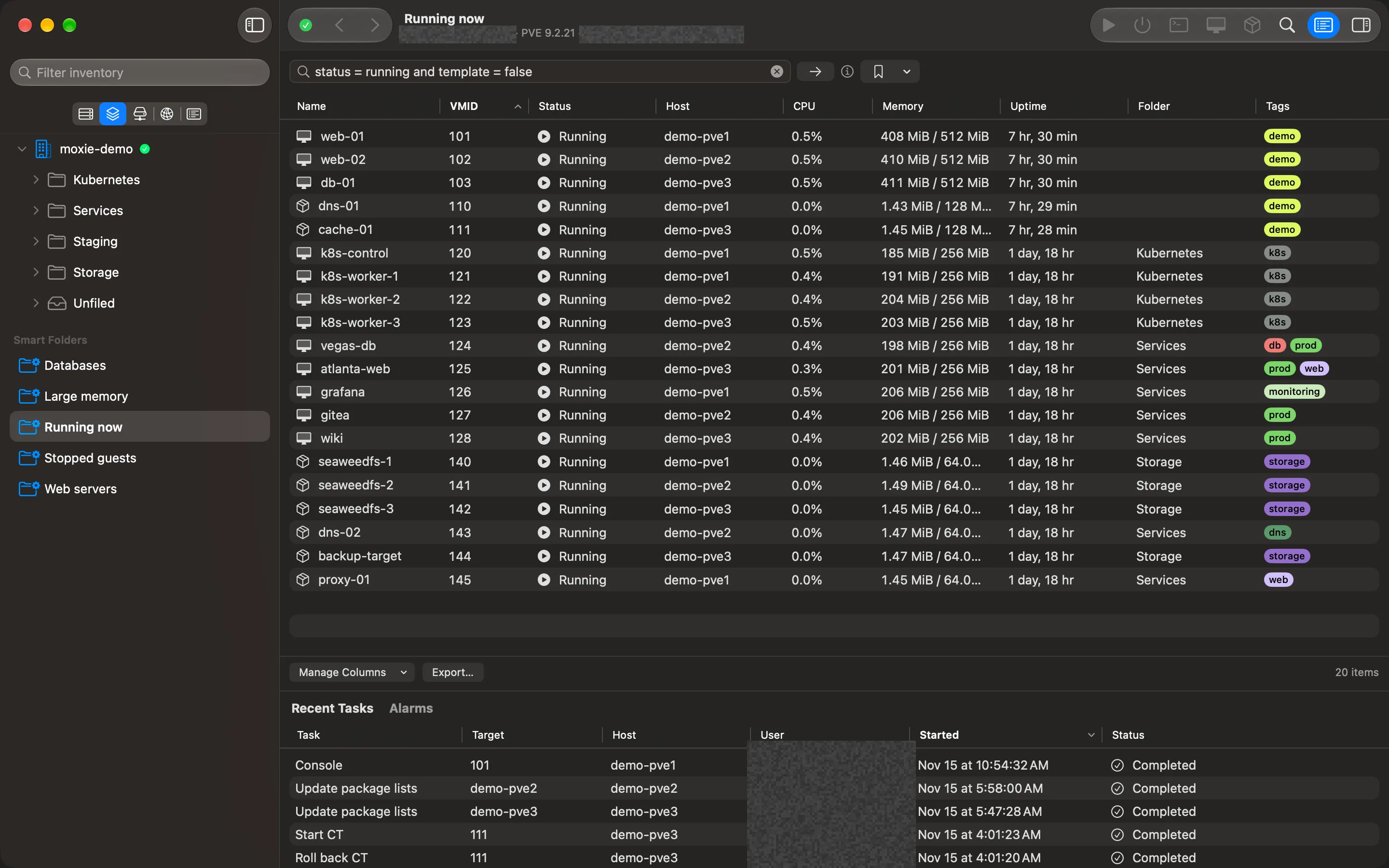
A Smart Folder is a search you keep. It lives in VMs & Templates › Smart Folders, and each time you open it, it shows the guests (VMs, containers and templates) of every cluster you’re showing that match it now: start a VM and it joins “Running VMs”; tag a container prod and it appears under “Production”. Hosts, storage and folders never appear in a Smart Folder; search for those in Lists.
Make one
- Choose Lists in the sidebar and open a table, for example Virtual Machines.
- Type a query in the bar above the table and check that the rows are the ones you want.
- From the Bookmarks menu, choose Bookmark This Search…, give it a name and save it.
The bookmark appears in the Bookmarks menu under Saved Bookmarks, and as a Smart Folder in VMs & Templates.
Smart Folders can use guest details too (os, ip, mac, network, dns, agent), so a folder such as “Windows VMs” (os ~ windows) or “VMs without a running agent” (agent != running) works everywhere. One comes ready-made: VMs without a working guest agent.
Coming in the next version.
A reboot field says whether a Debian or Ubuntu VM’s updates wait for a reboot, read through its guest agent: needed, not needed or not recorded (other distributions don’t record it). A second Smart Folder comes ready-made: VMs needing a reboot (type = qemu and reboot = needed; reading the reboot flag needs the VM.GuestAgent.FileRead permission).
Change or remove one
Bookmarks › Manage Bookmarks… lists every saved search. Edit changes its name or query (the query is checked as you type). Delete… removes it after asking, by name. Deleting a Smart Folder never touches the guests in it.
Smart Folders are saved for you alone, on this Mac.
Ideas to start with
| Smart Folder | Query |
|---|---|
| Running VMs | type = qemu and status = running |
| Stopped guests (no templates) | status = stopped and template = false |
| Templates | template = true |
| Production | tags = prod |
| Not tagged | null? tags |
| Big VMs | type = qemu and maxmem >= 32G |
| Busy right now | cpu > 80 |
| Running for over a month | status = running and uptime > 30d |
| Locked | set? lock |
| Under HA | set? ha and ha != ignored |
| On one host | node = pve1 |
| One cluster’s guests | cluster = "Home lab" |
| Web tier | pool ~ Web or name ~ web |
Useful in Lists
Hosts and storage don’t go in Smart Folders, but the same queries filter the Hosts and Storage tables in Lists:
| Shows | Query |
|---|---|
| Hosts that are down | type = node and status = offline |
| Shared backup storage | content = backup and shared = true |
| NFS and SMB shares | plugintype ^ (nfs, cifs) |
| Storage over 1 TB | maxdisk >= 1T |
Replace the names, tags and sizes with your own.
Checked against Moxie Prox 1.3. Updated November 13, 2026.