


for Proxmox VE
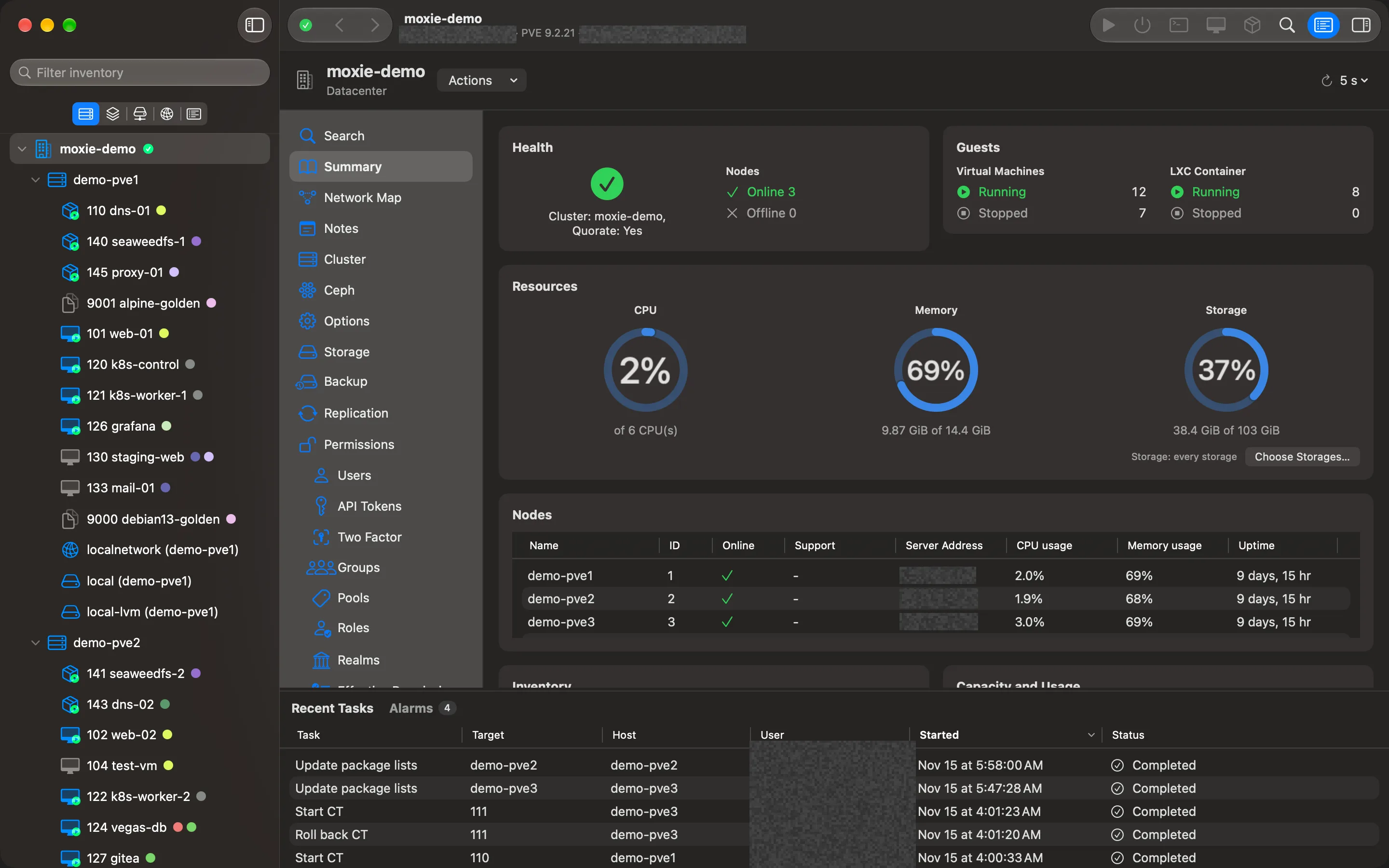
Proxmox VE in a real Mac app.
Every cluster in one window, laid out like vCenter: inventory trees, folders, Recent Tasks, consoles and live charts. No browser tabs, no account. On the Mac App Store now, with Windows and iPad coming soon.

Free to try for 7 days, then $19.99 to keep it, with a year of new features included.
Version 1.3 · 12 November 2026 · Release notes
- Native
- Written in Swift and SwiftUI for macOS 26. No web view, no Electron.
- Familiar
- The Proxmox VE menus you know, with vCenter-style views, folders and Recent Tasks.
- Private
- The app talks only to your own servers. No account, no analytics, nothing sent to us.
What the web interface doesn’t do.
Proxmox VE’s web interface manages one cluster from your browser, and does it well. Moxie Prox does that work too, and adds what a browser page leaves out.
- Every cluster in one window
- Link production, the lab and the branch office side by side: every sidebar view, Recent Tasks, Alarms and Lists cover all of them. The web interface shows the one cluster you signed in to.
- Searches that stay
- Save a search, such as every running Windows guest, as a Smart Folder, and it fills itself each time you open it. The web interface’s search is a text filter that isn’t kept.
- Your servers’ hardware
- Temperatures, fans, power draw, power controls and the locate LED from HPE iLO, Dell iDRAC, Lenovo XClarity and Supermicro, through Redfish. Proxmox VE doesn’t show your servers’ hardware health from their management controllers.
- Reports to share
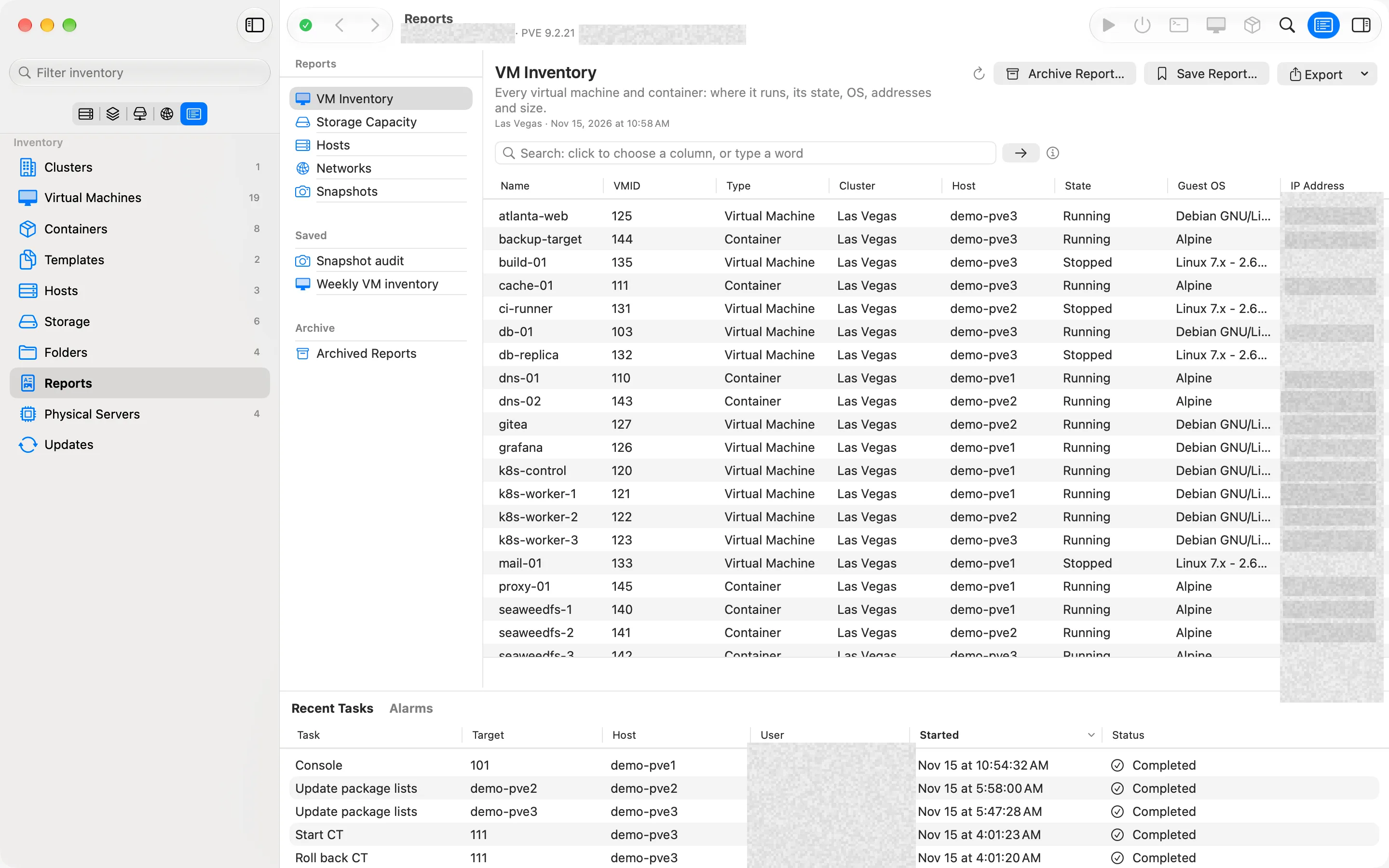
- VM inventory, storage capacity, hosts, networks and snapshots across your clusters, exported as PDF, CSV, HTML or JSON. The web interface has no inventory reports and no CSV or PDF export of its lists.
- Firewall changes that undo themselves
- Every firewall change starts as a 5-minute trial. Choose Keep, or it goes back by itself, even if the change cut you off. In the web interface, a saved change takes effect within seconds, with no trial and no automatic undo.
Compared with Proxmox VE 9.2 and Proxmox Datacenter Manager 1.1, November 2026. Using Proxmox Datacenter Manager? How the two compare
The Proxmox VE you know,
the way a native app does it.
Your whole datacenter, one sidebar.
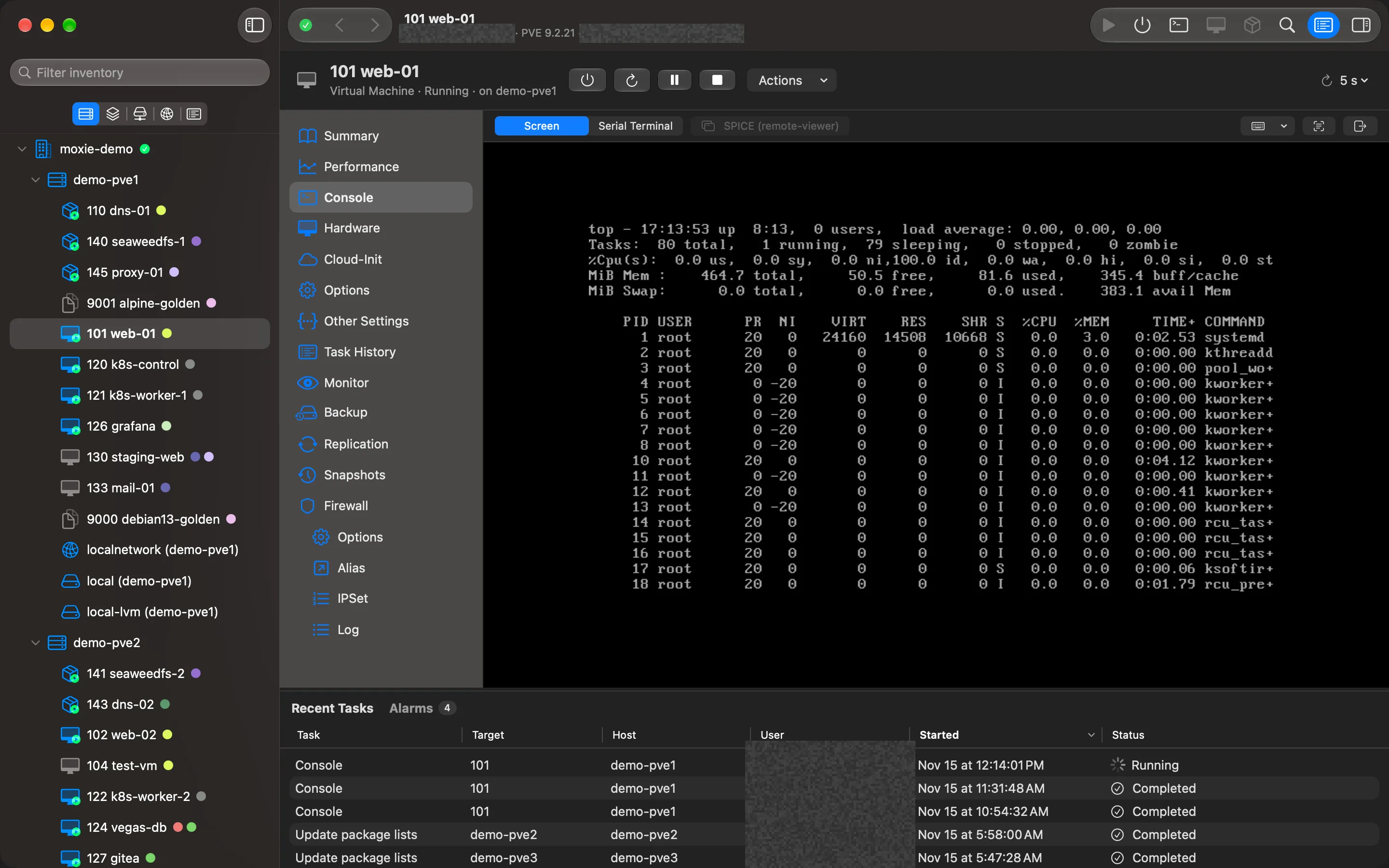
Browse by Hosts & Clusters, VMs & Templates, Storage or Networking. Beside it, the menu Proxmox VE shows for whatever you select, in the same order and with the same names, so nothing has to be relearned.
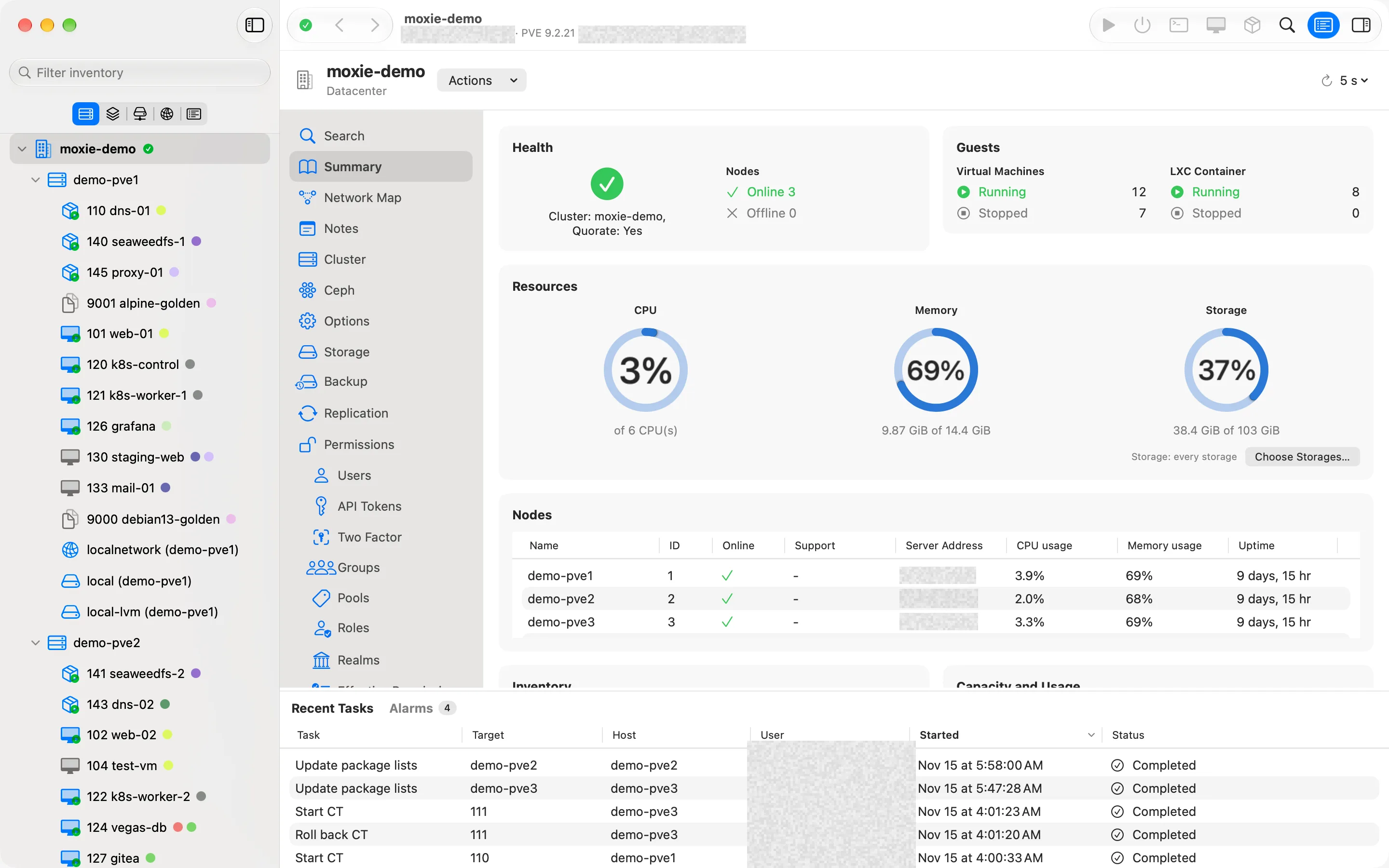
Live charts on every summary.
CPU, IO delay, server load, memory, network and pressure stall, with the timeframes and Maximum or Average views of the web interface. Point at any chart and every chart on the page marks the same moment.
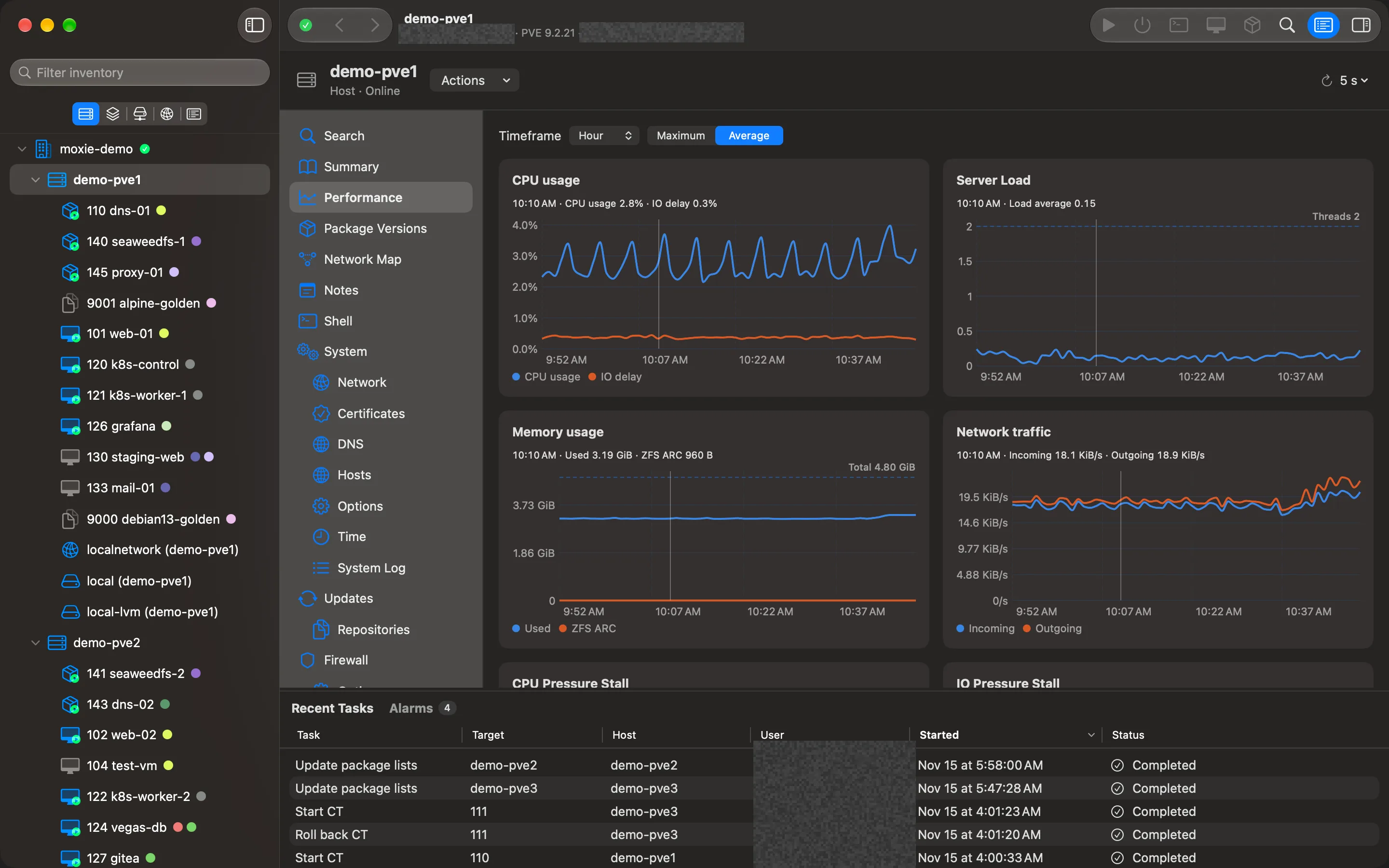
See how every guest is wired.
The Network Map draws a host’s ports, bonds and bridges, and the guests on each network, joined by lines. Anything that’s down is dashed and named, so a guest that can’t reach anything shows where it’s plugged in at a glance.
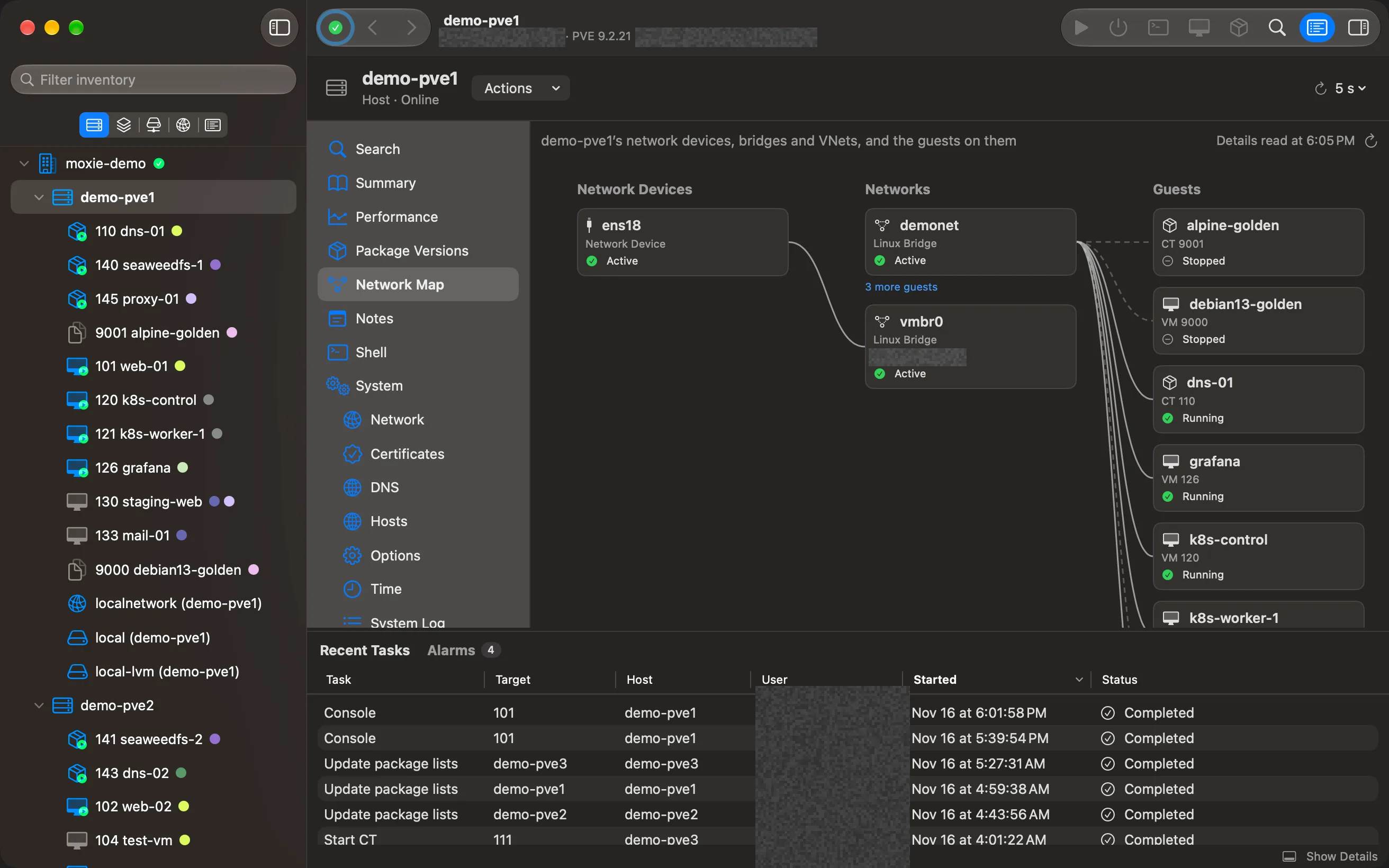
The Proxmox layout, with a vCenter feel.
Every VM and container gets the pages Proxmox VE shows, in the same order: Summary, Console, Hardware, Options, Backup, Snapshots, Firewall and more. Around them, the things vCenter users reach for: folders, linked clusters, inventory lists and Recent Tasks.
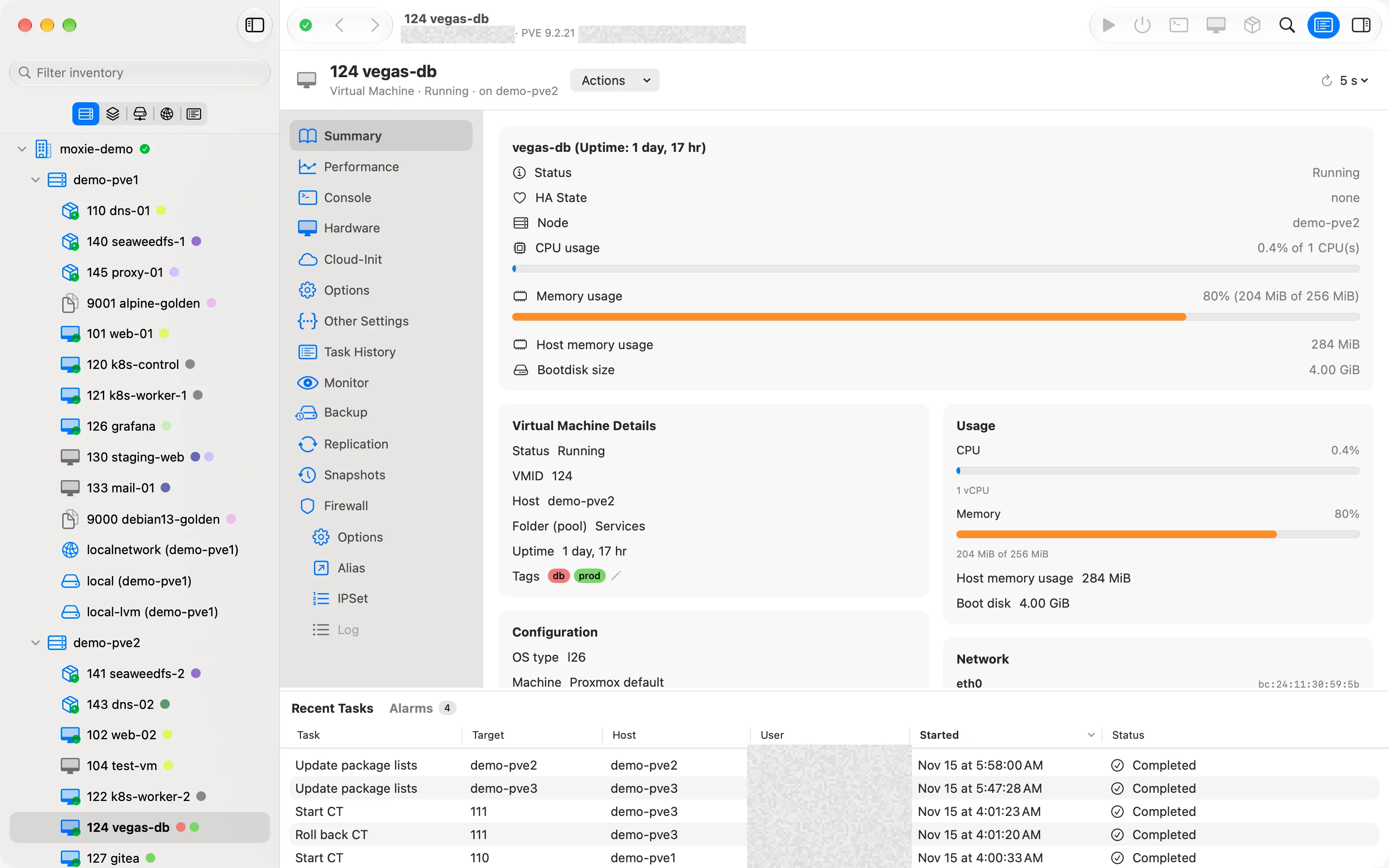
Every action, a right-click away.
Power, consoles, snapshots, migrate and clone, backups, tags and folders, all in one menu on any guest, grouped the way vCenter groups them. Anything your login may not do is dimmed, with the reason.
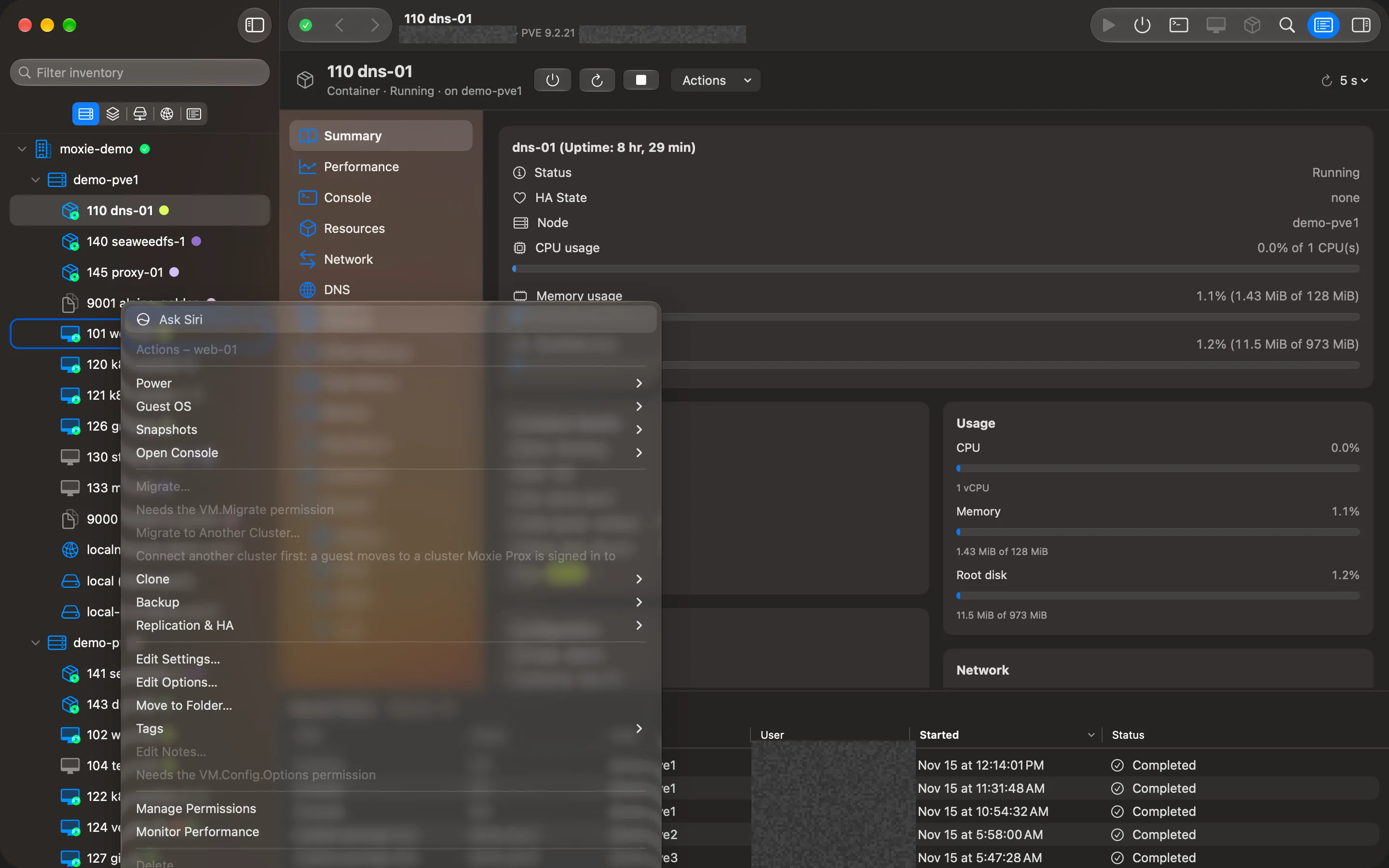
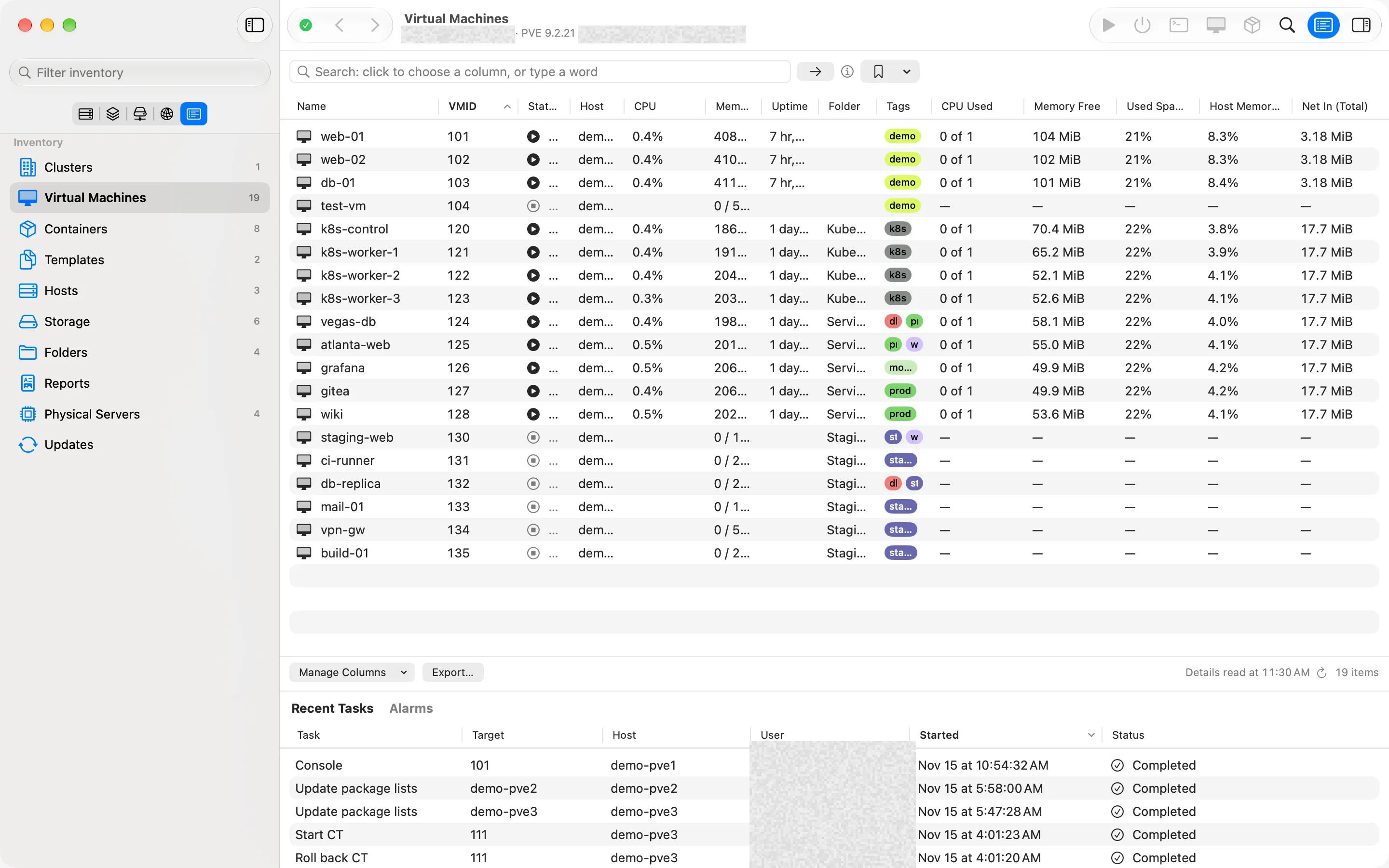
Lists that answer questions.
Every VM, container, host and storage of every cluster in sortable tables. Type a query such as status = running, choose the columns you need, and export what you see as a CSV file.
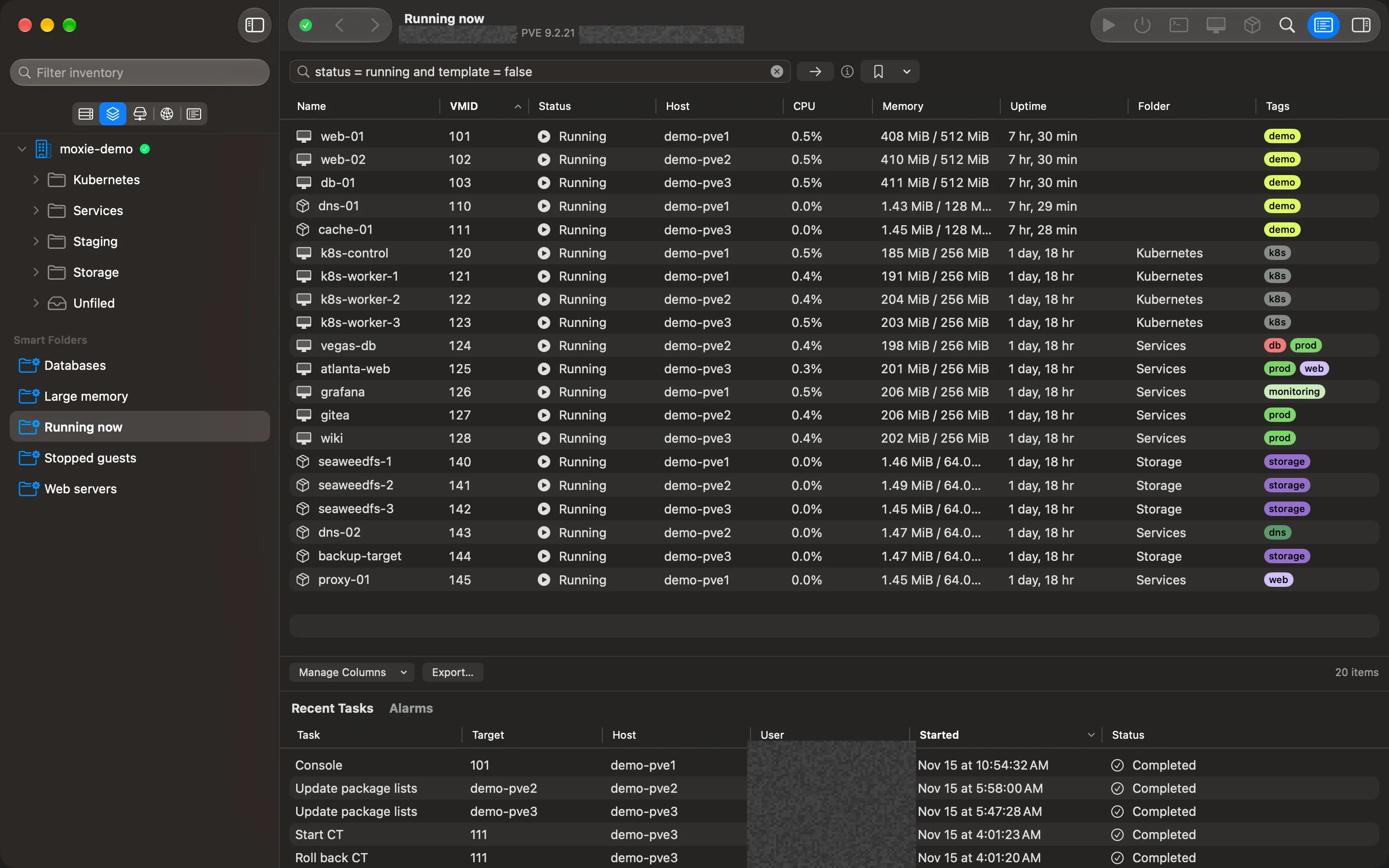
Smart Folders that keep up.
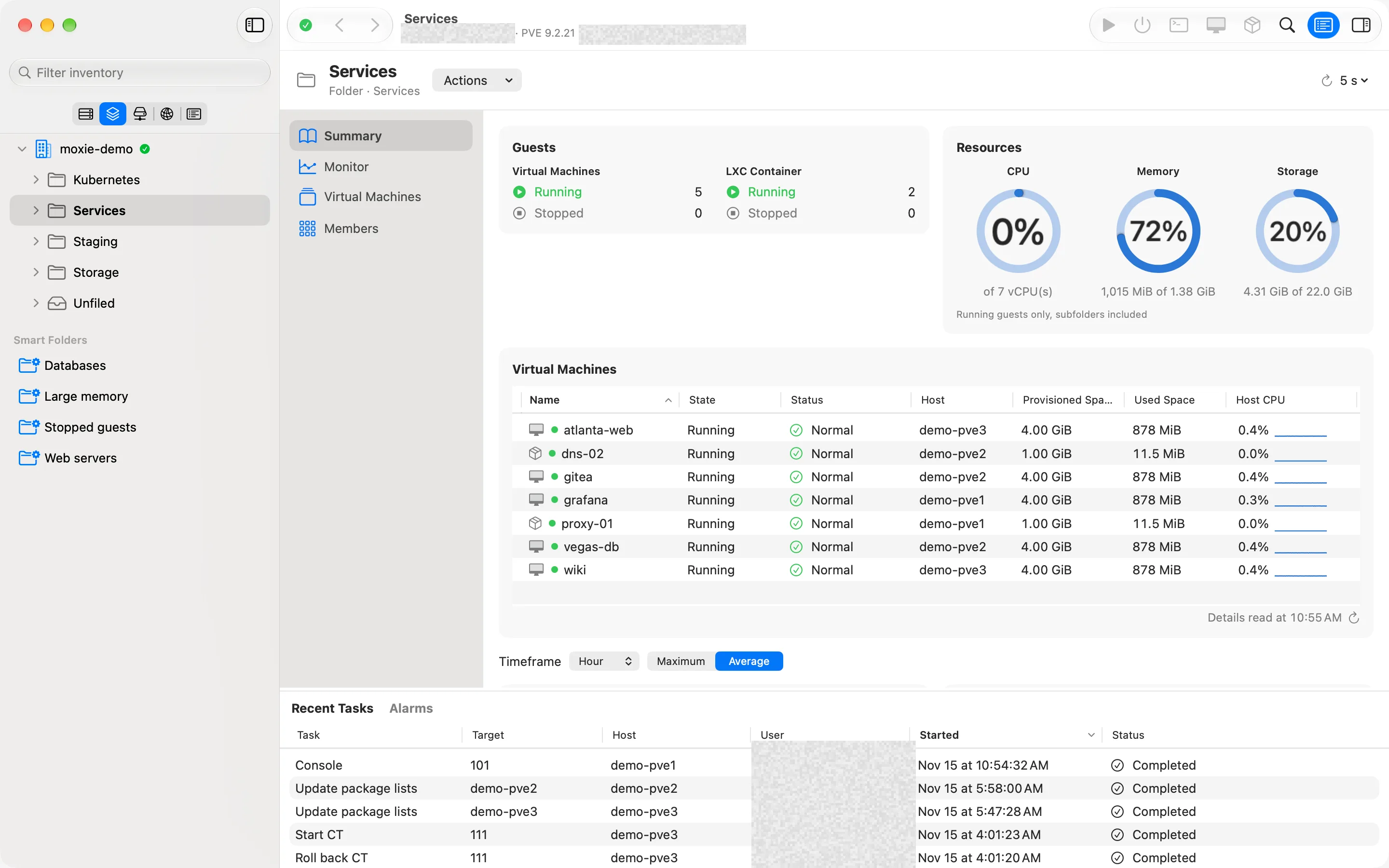
Save any search as a Smart Folder: web servers, stopped guests, everything tagged prod. Guided search builds the query with you, a column, a comparison and a value at a time. Each Smart Folder fills itself every time you open it, across every cluster you show.
Reports to share.
VM inventory, storage capacity, hosts, networks and snapshots across every cluster you show. Export them as PDF, CSV, HTML or JSON, save the ones you run often, and keep archived copies on your Mac.
All your clusters,
in one place.
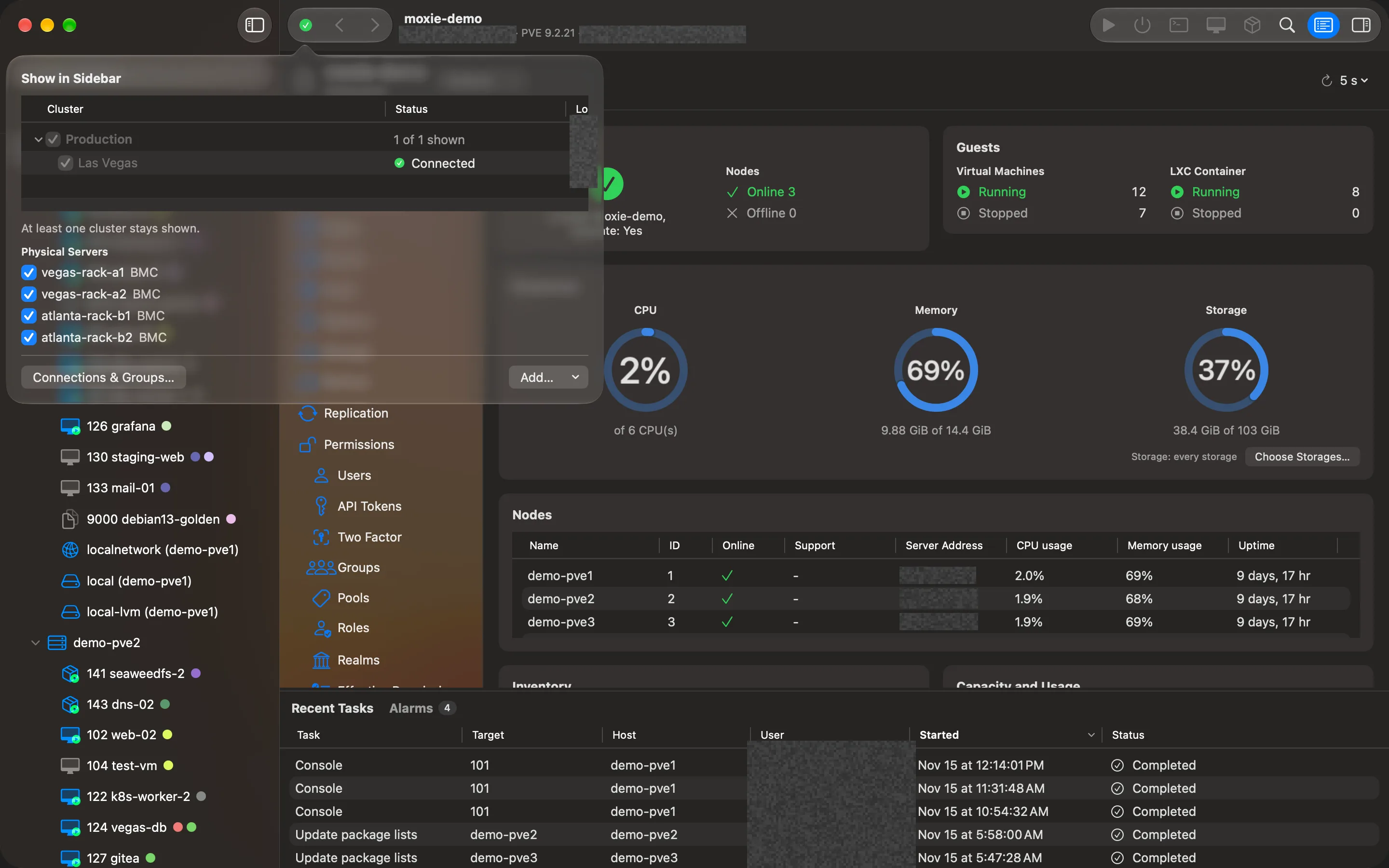
Production, the lab, the branch office: link them side by side, like vCenter’s linked mode, and work across all of them without switching windows or browser tabs.
- Linked, side by side
- Tick the clusters you want and each one appears in every sidebar view, with its own login and a status mark.
- Groups you name
- Gather clusters into groups such as Production or Test Lab, nest them up to three levels, put them in your order, and show one group or all of them.
- A Summary for every group
- Each group has its own Summary: health, guests, storage, networking and capacity across its clusters.
- One view of everything
- Recent Tasks, Alarms and Lists cover every cluster you show, with an all-clusters total.
- Nothing changes in Proxmox
- Linking and groups are how Moxie Prox arranges your clusters for you. Your clusters stay separate: nothing is joined, moved or reconfigured on your servers. Each one is reached only through its Proxmox VE API, with your login’s permissions.
Your hardware,
too.
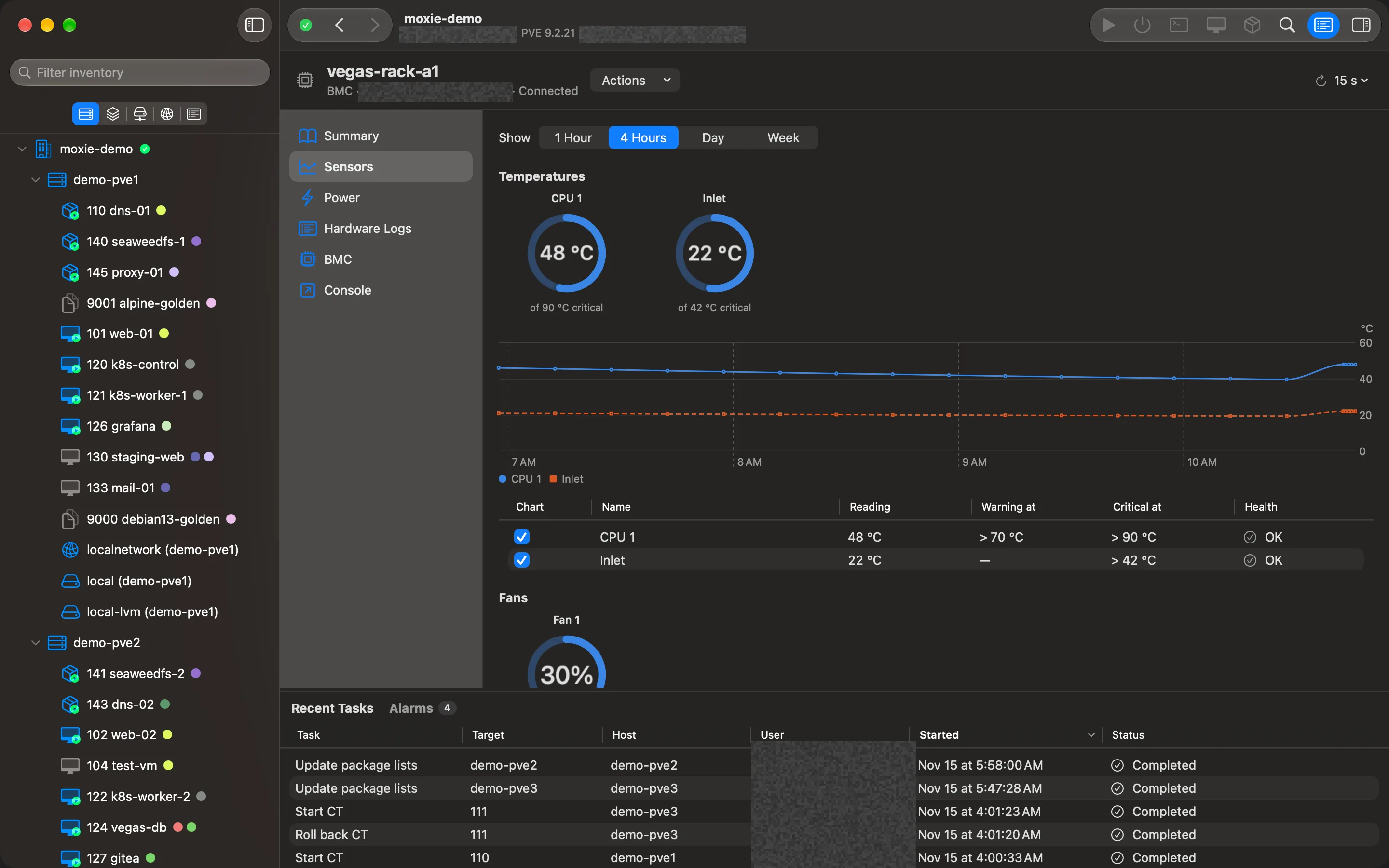
Add your servers’ HPE iLO, Dell iDRAC, Lenovo XClarity or Supermicro controllers through Redfish, and see the hardware beside your clusters.
- Temperatures, with their history
- Temperatures, fans, power draw and power supplies, with their limits, gauges and charts. A reading outside its limits raises an alarm.
- Power, asked first
- On, Shut Down, Restart, Force Off: the actions the controller allows. Anything that takes a server down names it and waits until you tick that it’s the one you mean.
- Find it in the rack
- Turn on the locate LED, read the hardware logs, open the controller’s own console, and link each server to the Proxmox host it runs.
Safe changes,
by design.
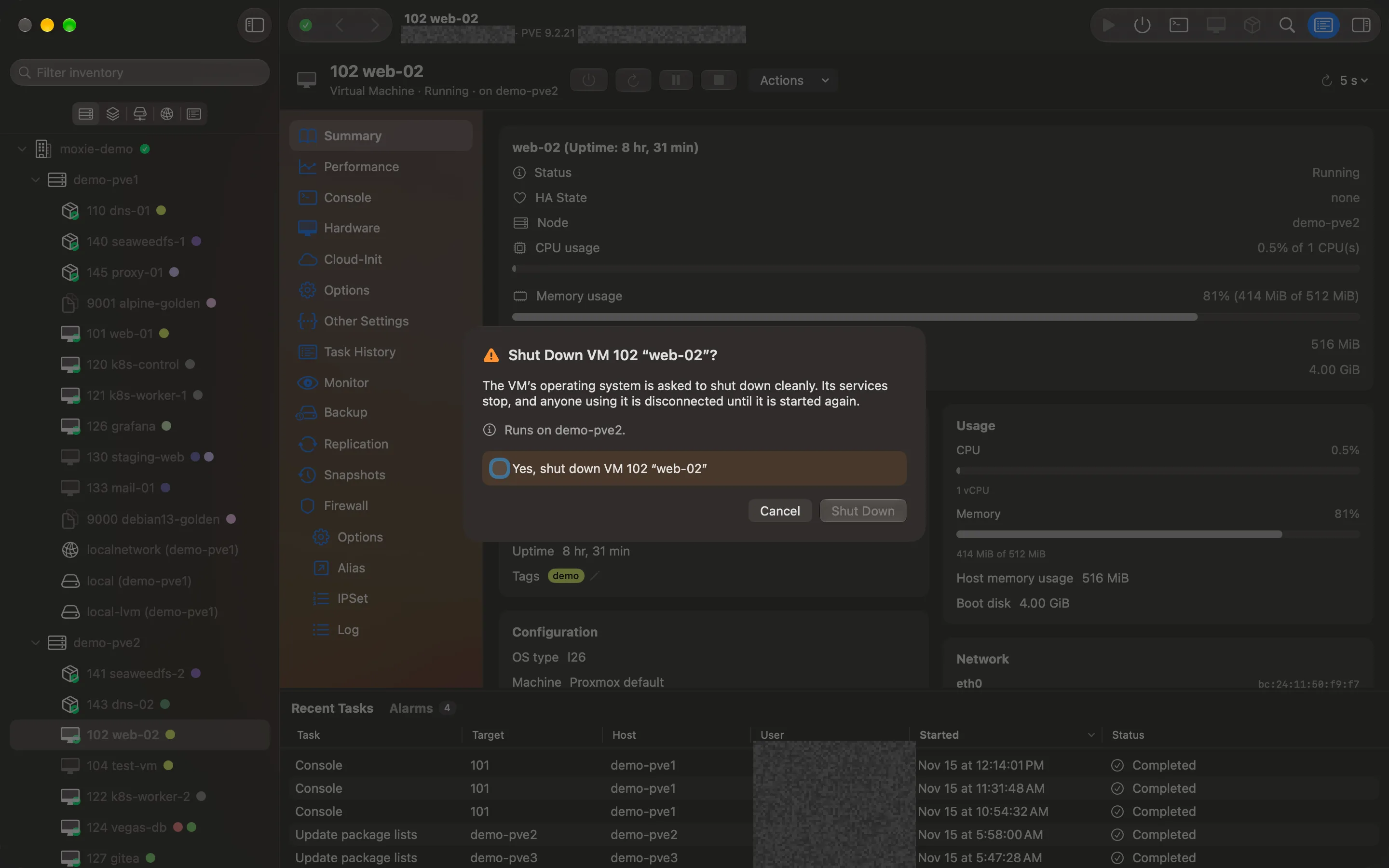
Moxie Prox manages real servers, so it makes the risky moments hard to get wrong.
- Locked yourself out? It undoes itself.
- Every firewall change starts as a 5-minute trial. Choose Keep to keep it. If you don’t, because the change cut you off, it’s put back by itself.
- Asks twice before anything goes down
- Shut Down, Reboot, Stop and every delete name the exact guest or host and wait until you tick that it’s the one you mean (or, to delete a guest, type its VMID). Pressing Return never confirms.
- Colours that tell you how much
- Red marks what is gone for good, such as a delete. Orange marks what is only taken down, such as a shutdown.
One click to the console.
A VM’s screen, its serial terminal, a container’s console or a host’s shell open right in the window or in a window of their own. They reconnect by themselves when a guest reboots.
- ScreenVNC, built in
- TerminalSerial terminals and container consoles
- ShellAny host you may reach
- SPICEHands off to your SPICE viewer
Coming from vCenter?
Moxie Prox is laid out the way vCenter people work, so the move to Proxmox VE feels familiar. Here is where things are.
Bring your VMs with you.
Add an ESXi host as storage, then Datacenter › Actions › Import from ESXi moves its VMs over, with Proxmox VE’s own import.
Your servers. Your computer.
Nothing in between.
Moxie Prox speaks directly to the Proxmox VE API on your servers. There is no Moxie cloud to sign up for, and the app collects no data at all.
- Secrets stay in your computer’s secure store
- Sign in with a password, with two-factor authentication, or with an API token. Saved secrets live in your Mac’s Keychain, optionally behind Touch ID, and on Windows in the Windows Credential Manager.
- Certificates you decide on
- A self-signed certificate is shown to you, with its fingerprint, before it’s trusted, and then pinned. Publicly trusted certificates just work.
- Your permissions, explained
- The app can do exactly what your Proxmox login may do. Anything it may not is dimmed, with the reason, instead of failing later.
- Nothing installed on your servers
- Moxie Prox uses the Proxmox VE API your servers already run. Nothing is added, joined or reconfigured on them.
Made for the Mac.
- Light and dark appearance, with a choice of your own in Settings.
- Global search with ⌘K, Back and Forward with ⌘[ and ⌘], refresh with ⌘R.
- Several clusters side by side, in groups you name and order.
- Folders backed by Proxmox pools, and Smart Folders that save a search.
- Optional App Lock with Touch ID or your Mac password.
- In English and German.
So far
- Version 1.3
- On the Mac App Store since 12 November 2026.
- 3 releases
- Since the first, on 5 November 2026. Every one listed in the release notes.
- Tested at 10,000 guests
- Tested at enterprise scale, up to 10,000 guests, before release.
- A 24-page User Guide
- Every screen explained, step by step, in the User Guide.
Free for 7 days.
Then yours to keep.
Everything works during the trial. After that, $19.99 keeps it for good, with a year of new features included.
- MacmacOS 26 Tahoe or later, Apple silicon or Intel
- WindowsComing soon to the Microsoft Store
- ServerProxmox VE 9 (Proxmox VE 8 best-effort)
- LoginA Proxmox VE user or API token
Questions, answered.
- What happens after the included year?
- Moxie Prox keeps working and you keep everything you have. Bug and security fixes stay free, and so do fixes for the Proxmox VE versions it supports. Later, an optional yearly renewal may bring newer features; you never lose what you already have.
- Which Proxmox VE versions does it work with?
- Proxmox VE 9, developed and tested on 9.2. It also connects to Proxmox VE 8, which Proxmox stopped supporting in August 2026, on a best-effort basis: anything that needs a newer version is shown disabled, with the version it needs.
- Does it run on an Intel Mac?
- Yes. Moxie Prox runs on any Mac with macOS 26 Tahoe or later, with Apple silicon or an Intel processor.
- Can I sign in with a read-only account?
- Yes. Moxie Prox works within your login’s permissions: with a read-only user or API token, such as one with the PVEAuditor role, you see everything that login may see, and every action it may not take is dimmed, with the reason.
- Do I install anything on my servers?
- No. Moxie Prox talks to the Proxmox VE API your servers already run. Nothing is installed, joined or reconfigured on them.
- What about Proxmox Datacenter Manager?
- Proxmox Datacenter Manager is Proxmox’s own web app for several clusters. It runs on a server, VM or container of its own and gives an overview of your clusters, with migration between them and updates for every host. Moxie Prox needs no extra server, and it’s a full client: create and edit guests, backups, firewall rules and more, cluster by cluster. Plenty of people use both.
One app, more places.
- Mac
- Swift and SwiftUI for macOS 26. On the Mac App Store.
- Windows
- The same app for Windows PCs, built from the same core with a native Windows interface. Coming soon to the Microsoft Store.
- iPad and iPhone
- Moxie Prox in your hand, with Face ID. Coming soon.
Want to know when it’s ready? Tell me when Windows ships · Follow the release notes (Atom feed)