
Monitor
Network Map
New in 1.2
See how a host's network devices, bonds and bridges lead to its networks and the guests on them, or a whole SDN zone across its hosts.
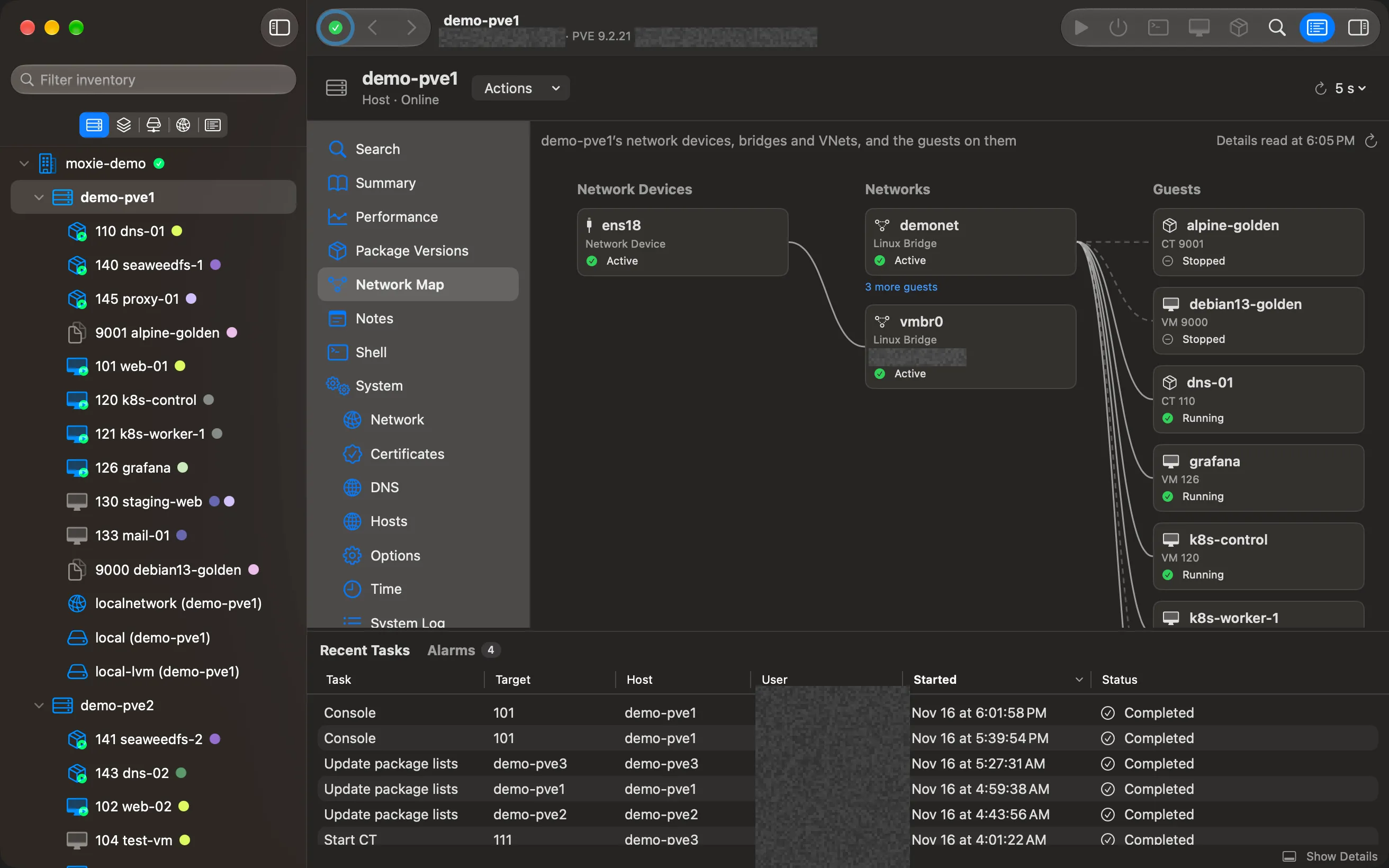
Proxmox lists a host’s network devices, bridges and VNets as tables. The Network Map draws them: what each guest is plugged into, which bridge that is, and which physical port it leaves the host by. It answers “why can’t this VM reach anything?” at a glance.
A host’s map
Select a host in Hosts & Clusters and choose Network Map in its menu. The map has three columns, joined by lines:
- Network Devices: the host’s physical ports, bonds and the VLANs on them.
- Networks: its Linux and Open vSwitch bridges, each with its address (a VLAN on a bridge is listed under it), and the SDN VNets of the zones on it, with their zone.
- Guests: the VMs and containers with a network device on each network.
Network devices, bridges and guests show their state as a symbol and a word, such as Active or Inactive for a bridge and Running or Stopped for a guest. A line to anything that’s down is dashed, so you never have to tell colours apart.
A zone across its hosts
In the Networking view, select an SDN zone and choose Network Map. Its map shows the Nodes the zone is on, its networks (with how many of those hosts have each one working, such as 2 of 3 OK) and the guests on them.
The whole cluster
Coming in the next version.
In the Networking view, select the datacenter and choose Network Map in its menu. Each host gets a band of its own: its name and state (such as Online or Offline), how many network devices, networks and guests it has, and under that the host’s own map with its three columns.
- Click a band’s line to fold it away or open it again; Expand All and Collapse All do every band at once.
- On a cluster of more than three hosts, every band starts folded, so the page opens quickly and stays readable. A host’s guests are read only once its band is opened.
- The arrow at the end of a band’s line opens that host.
- A host that’s offline, or whose network couldn’t be read, says so in its band instead of showing a map.
- Next to Refresh Map, the page shows how far it has read the guests’ network devices, then the time they were read.
Read and use it
- Click a card to open that object: a guest opens its own page, a bridge its host’s Network page, a VNet the datacenter’s VNets.
- A network with many guests shows the first few and a button such as 12 more guests; Show fewer guests folds them away again.
- Refresh Map reads the network and the guests’ network devices again.
- If something couldn’t be read, such as a guest whose configuration your login can’t see, the map says so above the columns rather than leave it out silently.
- With VoiceOver, each card says which cards it’s joined to, since the lines can’t be followed by ear.
Checked against Moxie Prox 1.3. Updated November 9, 2026.