
Manage the datacenter
Physical servers (iLO, iDRAC)
New in 1.2
Add your servers' management controllers (iLO, iDRAC, XClarity, Supermicro) and see their hardware, sensors, power and logs next to Proxmox.
Proxmox sees your hosts from the inside. Their management controllers (BMCs), such as HPE iLO, Dell iDRAC, Lenovo XClarity or Supermicro’s, see the hardware from the outside, and keep working when the server is off or Proxmox won’t boot. Moxie Prox connects to them through Redfish, the standard API they share, and shows them beside your clusters.
Before you start
- The controller’s address: the iLO’s or iDRAC’s own address on your management network, not the server’s.
- An account on the controller. A read-only account is enough to see the hardware. Power actions and the locate LED need an account allowed to reset the server, usually called Operator. Use the least the job needs.
- Redfish turned on in the controller’s settings, if your model lets you turn it off.
Add a server
- Choose Add… › Server Management (iLO, iDRAC, …)… (from the welcome screen, the toolbar, File › Add, or a group’s header to put it straight into that group).
- Type the controller’s Address, and a Port if it isn’t the usual one, and choose Continue.
- If this Mac doesn’t trust the controller’s certificate, which is usual for a factory certificate, check its fingerprint and trust it, as for a cluster. Moxie Prox then asks the controller what it is, before any sign-in, and shows what it Found.
- Enter the User name and Password and choose Sign In. Moxie Prox signs in once to check them and shows the account’s role under Account, such as Administrator, Operator or Read-only access, before anything is saved.
- Choose whether to Remember in Keychain. If you don’t, Moxie Prox asks for the password when it needs it.
- Tick the Groups it belongs to, give it a Name if you like, and add it.
The server appears under Physical Servers in each of its groups in the Hosts & Clusters sidebar, and in Lists › Physical Servers with its model, power state and health.
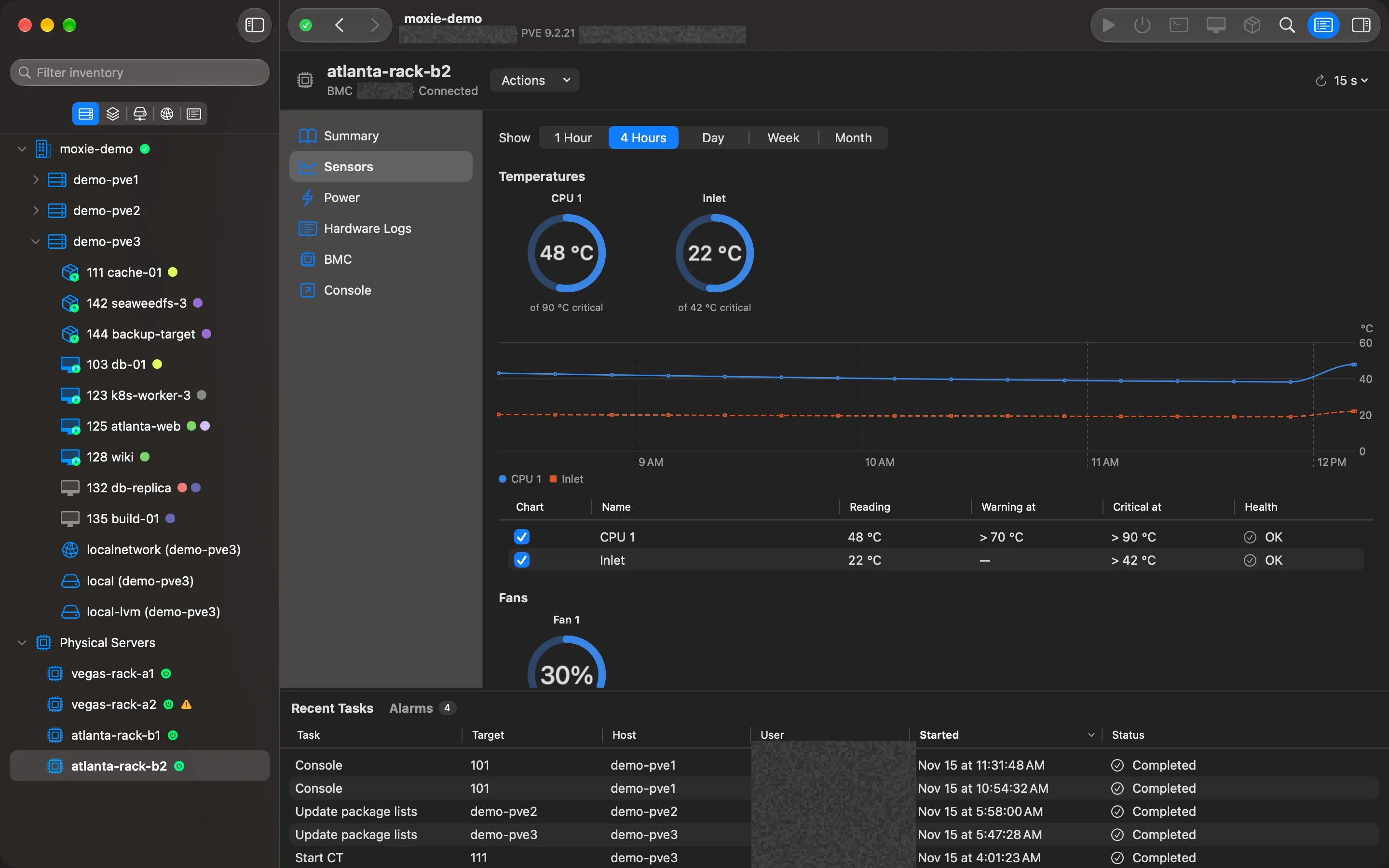
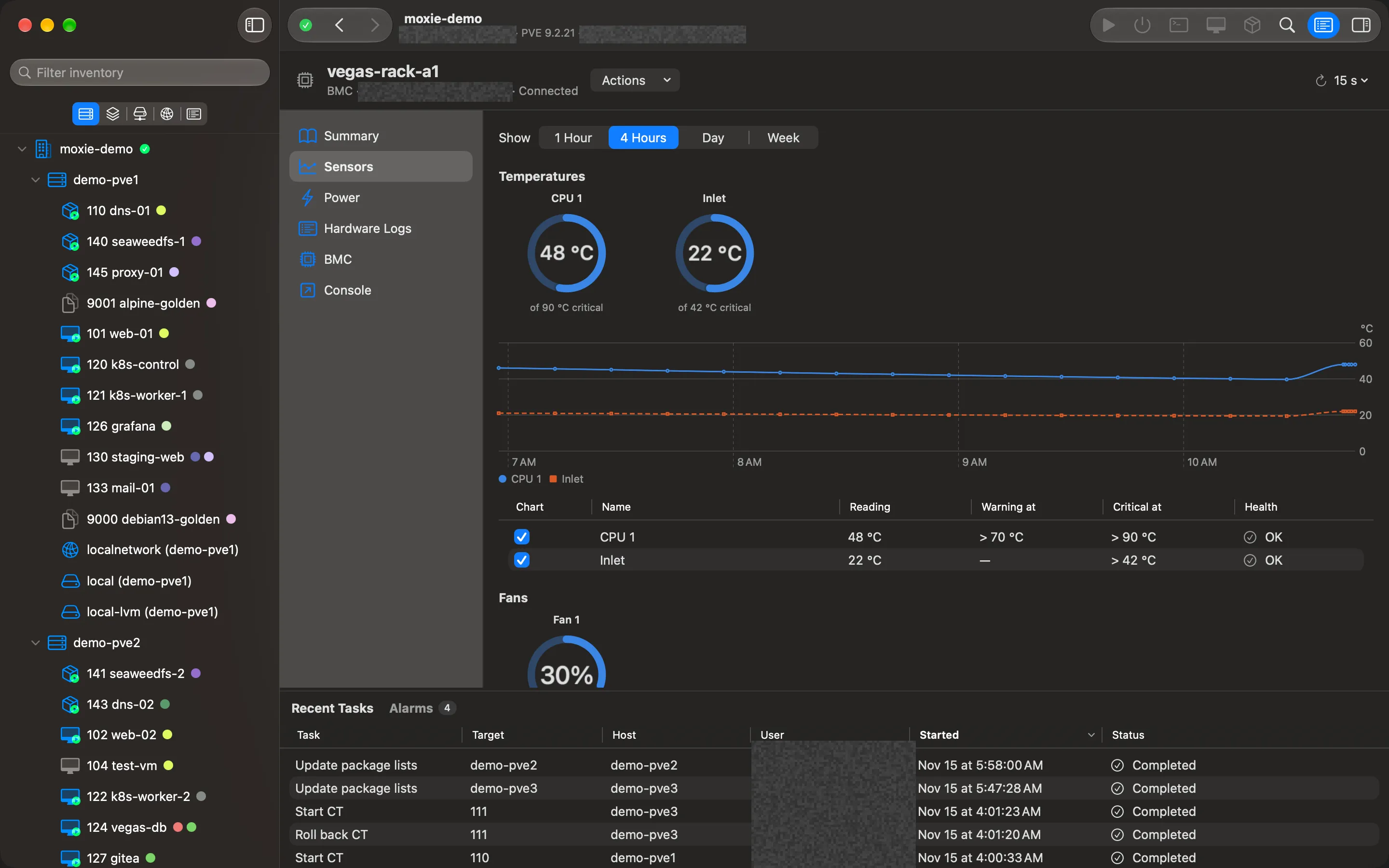
What you can see and do
Select a server and its menu has:
- Summary: model, serial number, BIOS, processors, memory, power state, health and firmware.
- Sensors: temperatures, fans, power draw and power supplies, with their limits, gauges and charts of their history. A reading outside its limits raises an alarm in Alarms.
- Power: the actions the controller allows, such as On, Shut Down, Restart and Force Off. Anything that takes the server down asks first and names it, like a guest’s. The Power page also turns the locate LED on and off, to find the server in the rack. A read-only account sees these dimmed, with the reason.
- Hardware Logs: the logs the controller keeps.
- BMC: the management controller itself.
- Console: opens the controller’s own web page in your browser, for its remote console and settings.
Link a server to its Proxmox host
Proxmox doesn’t know which controller belongs to which host, so you tell Moxie Prox once: choose Link to Proxmox Node… on the server and pick the host. Moxie Prox suggests the host whose name matches what the controller reports. The link is kept in Moxie Prox only; nothing is written to Proxmox.
Once linked, the host’s menu shows the controller’s pages right after Shell, named for its kind (iLO, iDRAC…). When Proxmox reports the host offline, Power On (BMC) is right there to start it again.
Checked against Moxie Prox 1.3. Updated November 15, 2026.